Configurations and Use Cases
This chapter describes the configurations you can build — one-to-one, one-to-many, machine select, and two-to-one — explains which device models and communication methods each one requires, and shows how to build and modify a configuration in FORT Manager or through the FORT API.
After you register your FORT Pro Series devices, you can add them to a configuration. You can build configurations in the FORT Manager Web App, in the FORT Manager Desktop App, or through the FORT API.
A configuration allows you to: 1
-
Add devices to a network enabling them to communicate with each other.
-
Configure device settings.
-
Select the method for device communication.
-
Designate the type of sender for the configuration (EPC, WES Pro, SRC Pro).
-
Designate the type of receivers for the configuration (EPC, NSC Pro).
-
Configure the inputs on the sender.
The following table shows the various configurations that you can build with Pro Series devices:
| Configuration Type | Sender:Receivers 2 | Definition |
|---|---|---|
| One-to-One (1:1) |
EPC : EPC; EPC : NSC Pro; WES Pro : EPC; WES Pro : NSC Pro SRC Pro : EPC; SRC Pro : NSC Pro |
One sender connected to one receiver. |
| One-to-Many (1:many) |
EPC : many EPCs EPC : many NSC Pros |
One sender that is capable of sending an E-Stop to all receivers in the configuration at once. |
| Machine Select |
SRC Pro : many EPCs SRC Pro : many NSC Pros |
One sender that recognizes multiple receivers but can connect to and control one receiver at a time. |
| Two-to-One (2:1) |
SRC Pro & WES Pro : 1 EPC SRC Pro & EPC : 1 EPC (ISM and Bluetooth) SRC Pro & EPC : 1 EPC (LRBLE) WES Pro & EPC : 1 NSC Pro (LRBLE) WES Pro & EPC : 1 EPC (LRBLE or Ethernet) LRBLE combinations require mdoel 1003. |
Two senders, each able to send a safety signal to the connected receiver. |
| SRC Pro with Global E-Stop | SRC Pro & EPC : many EPCs (up to 30) | One SRC Pro that recognizes multiple receivers but can connect to and control one receiver at a time, plus an E-Stop that can send a safety signal to all receivers at once. |
Device Models and Communication Methods
Not every device can use every communication method. The radio is built into the device, so the model you own determines which methods are available to it, and therefore which configurations it can join.
The following table lists the models that FORT Manager supports. A model that has reached end of support is not listed, even if the device is still in service. For more information, see SRC Pro Models and Support Status.
| Communication Method | EPC | SRC Pro | WES Pro | NSC Pro |
|---|---|---|---|---|
| ISM 900 MHz (North America) | EPC 1001 | SRC Pro 1001 | — | NSC Pro 1001 |
| ISM 868 MHz (Europe) | EPC 1002 | SRC Pro 1002 | — | NSC Pro 1002 |
| Bluetooth Low Energy (BLE) | EPC 1000, 1001, 1002 | SRC Pro 1001, 1002 | — | — |
| Long-Range Bluetooth (LRBLE) | EPC 1003 | SRC Pro 1003 | WES Pro 1003 | NSC Pro 1003 |
| Wi-Fi | All EPC models | — | — | With additional hardware |
| Ethernet | All EPC models | — | — | With additional hardware |
Every device in a configuration must support the communication method the configuration uses. A configuration that communicates over LRBLE can contain only model 1003 devices — senders and receivers alike.
Which interfaces FORT Manager offers you can be narrower than what the hardware supports, because some configurations restrict the choice. For example, in a 2:1 configuration with a WES Pro and an EPC, Wi-Fi is not offered for an EPC sender of model 1003. For more information, see Settings in a WES Pro and EPC Configuration.
The NSC Pro has no built-in Wi-Fi modem or wired Ethernet adapter. Using an IP network with an NSC Pro requires additional hardware. For more information, see Setting up an NSC Pro for IP Networking (EPC Sender)
You can find a device's model number on its nameplate, in a handheld's onscreen menu, or in FORT Manager on the Devices page. For the radio specifications of each model, see
Antennas are matched to the radio, not only to the device. When you select an antenna, check it against the communication method you plan to use. For more information, see Antennas.
You build these configurations in FORT Manager or through the FORT API, and you apply them from a computer connected to each device. You can find instructions for building any type of configuration in Building a Configuration and instructions for loading configurations onto your devices in Loading a Configuration onto Your Devices.
One-to-One Configuration
In a One-to-One (1:1) configuration, you configure a single sender connected to a single receiver.
For the sender, you can use an SRC Pro, EPC, or WES Pro.
For the receiver, you can use either an EPC or an NSC Pro.
The following table shows details about a One-to-One configuration:
| Sender | Receiver | Communication |
|---|---|---|
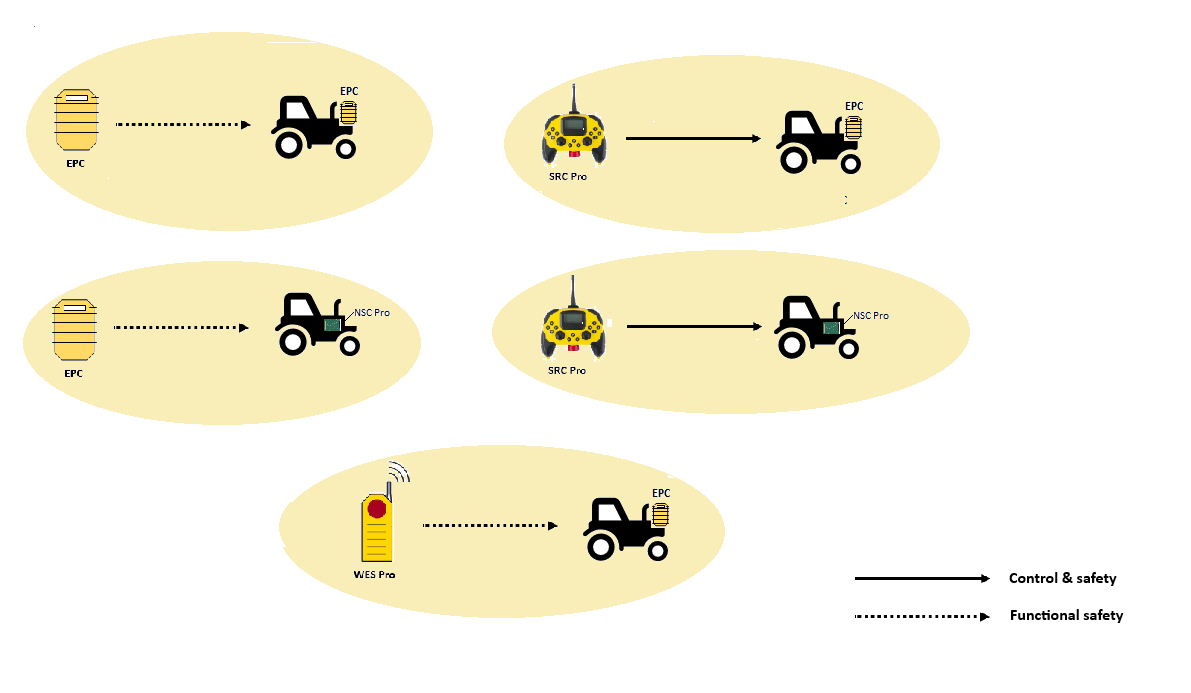
| EPC | EPC | Ethernet, Wi-Fi, BLE, LRBLE |
| EPC | NSC Pro | ISM 900 and 868, LRBLE (model 1003 only) |
| WES Pro | EPC | LRBLE |
| WES Pro | NSC Pro | LRBLE |
| SRC Pro | EPC | ISM, Bluetooth, LRBLE |
| SRC Pro | NSC Pro | ISM |
For which radios each device model carries, see Device Models and Communication Methods.
The following figure shows possible One-to-One configurations:
If your configuration connects devices through Ethernet, and your network contains complex message routing and firewall rules, you may need to set up UDP port allocation rules to ensure that data packets move seamlessly back and forth between your devices over an Ethernet network. See UDP Port Allocation for Ethernet Connections.
One-to-Many Configuration
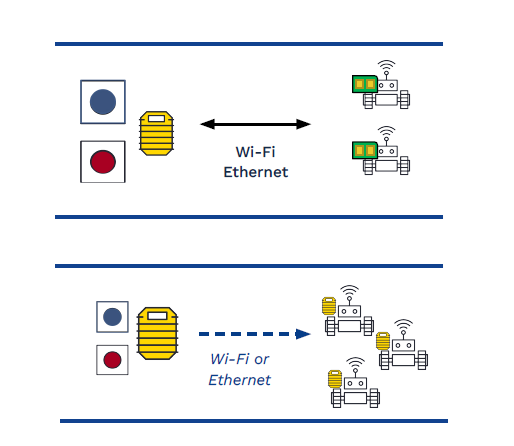
In a One-to-Many (1: many) configuration, a single EPC sender is connected to and able to send a safety signal to multiple EPCs or NSC Pros at once.
You cannot mix and match the receivers – they must be all EPCs or all NSC Pros.
The following table shows details about a One-to-One configuration:
| Sender | Receiver 3 | Communication |
|---|---|---|
| EPC | Multiple EPCs (up to 30) | Ethernet, Wi-Fi |
| EPC | Multiple NSC Pros (up to 30) | ISM 900 and 868 |
The following figure illustrates two possible One-to-Many configurations:
If your configuration connects devices through Ethernet, and your network contains complex message routing and firewall rules, you may need to set up UDP port allocation rules to ensure that data packets move seamlessly back and forth between your devices over an Ethernet network. See UDP Port Allocation for Ethernet Connections.
Machine Select Configuration
In a Machine Select Configuration, one SRC Pro recognizes multiple receivers (all EPCs or all NSC Pros, not a mix) but can connect to and control only one at a time. For example, an equipment operator can connect to a machine in the yard with an SRC Pro, manuever it out to a work area, place it in unsupervised mode and go back to the yard to pick up a different machine. The machine can continue to run safely in unsupervised mode (assuming it has autonomous capabilities) while disconnected from the SRC Pro. See the discussion that follows in Supervised and Unsupervised Mode.
The following table shows details about a Machine Select Configuration:
| Sender | Receiver 4 | Communication |
|---|---|---|
| SRC Pro | Multiple EPCs (up to 30) with unsupervised mode capability. | ISM 900, ISM 868 BLE, LRBLE |
| SRC Pro | Multiple NSC Pros (up to 30) without unsupervised mode capability. | ISM 900 and 868 |
Supervised and Unsupervised Mode
When the user selects a machine and successfully connects to the receiver (EPC or NSC Pro) on that machine, the receiver is always put in supervised mode. The user later can change the mode to unsupervised mode (if applicable and needed).
Supervised mode means that the Safe Remote Control Pro is connected to the EPC or NSC Pro and is sending input data such as joystick movements, safety messages, etc. to the selected machine. If an operator pushes the E-Stop button, the EPC or NSC Pro enters the safe state. If the Safe Remote Control Pro stops communicating with the EPC or NSC Pro, resulting in a timeout, the EPC or NSC Pro enters the safe state.
Unsupervised mode is meant to be used with machines that have autonomous capability. For example, after taking a machine out of the yard to a work area, an operator can put it in unsupervised mode and it can continue to run safely while disconnected from the SRC Pro. The operator can go back to the yard with the SRC Pro, connect to a different machine, and bring it out to the work area.
If a machine is not equipped for autonomous capability, switching into unsupervised mode causes a safe state.
Unsupervised mode is only available for EUCs with EPC receivers, not for those with NSC Pro receivers. When an SRC Pro stops communicating with an NSC Pro (from an E-Stop signal or loss of communication), the machine is inoperable until the SRC Pro reconnects with the NSC Pro receiver. Putting an NSC Pro into unsupervised mode cause a safe state.
In unsupervised mode, the SRC Pro and the EPC are not communicating with each other, so the SRC Pro is not sending safety or control information to the EPC. Rather, the EPC that is attached to the equipment is responsible for monitoring the customer supplied safety signal, and if that signal changes out of the normal state, the EPC enters the safe state and breaks the circuit to the equipment under control. For wiring details, see Wiring Receivers with an SRC Pro Sender.
Make certain that your equipment operators are aware of the following points about operating equipment in unsupervised mode:
-
Pushing the E-Stop button on the SRC Pro has no effect because the EPC ignores an E-Stop command in unsupervised mode.
-
Be certain that the equipment is able to operate safely without need of the E-Stop button, as pushing it will have no effect and it may not be quick, easy, or even possible to change the mode of the EPC back to supervised for a number of reasons, including the following:
-
The equipment with the EPC is out of range of the SRC Pro.
-
The SRC Pro has run out of battery.
-
The SRC Pro is damaged or unresponsive.
-
See Building a Configuration for details of using FORT Manager to build a configuration.
Two-to-One Configuration
A Two-to-One (2:1) configuration has two senders and one receiver, which allows either of two people to send an E-Stop signal to the receiver and the EUC. The possible combinations are as follows:
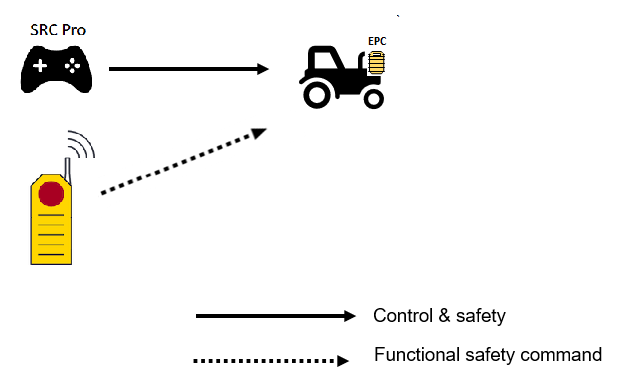
- SRC Pro and WES Pro senders with one EPC, communicating over LRBLE.
-
SRC Pro and EPC senders with an EPC, communicating over ISM or Bluetooth.
-
SRC Pro and EPC senders with an EPC, communicating over LRBLE. This combination requires model 1003 for all three devices. For more information, see Two-to-One over Long-Range Bluetooth
-
WES Pro and EPC senders with one NSC Pro, communicating over LRBLE. For more information, see Two-to-One with a WES Pro and an EPC.
-
WES Pro and EPC senders with one EPC, communicating over LRBLE, with the option of Ethernet for the EPC sender. For more information, see Two-to-One with a WES Pro and an EPC.
For example, in a configuration with an SRC Pro and a WES Pro or an SRC Pro and an EPC, the equipment operator could control the machine with an SRC Pro and push the E-Stop at any time to resolve a safety issue. At the same time, another person could observe the operation from a different vantage point and press the E-Stop on the WES Pro or on the EPC sender if they see a safety issue.
In a different scenario, the equipment operator uses the SRC Pro to drive the equipment to a work area and then puts the EPC attached to the equipment under control (EUC) in unsupervised mode. In this case, the SRC Pro does not control movement of the EUC nor will pressing the E-Stop affect the EUC. However, the secondary controller, a WES Pro or EPC, can still send an E-Stop signal to the EPC receiver attached to the EUC.
The following figure illustrates a Two-to-One configuration with SRC Pro and WES Pro senders.
The following table shows details about a Two-to-One configuration:
| Sender | Receivers 5 | Communication | Device Models |
|---|---|---|---|
| SRC Pro and WES Pro | One EPC | LRBLE | SRC Pro 1003, WES Pro 1003, EPC 1003 |
| SRC Pro and EPC | One EPC | ISM, Bluetooth | Any model carrying the radio you select |
| SRC Pro and EPC | One EPC | LRBLE | SRC Pro 1003, WES Pro 1003, EPC 1003 (both the sender and the receiver) |
| WES Pro and EPC | One NSC Pro | LRBLE | WES Pro 1003, EPC 1003, NSC Pro 1003 |
| WES Pro and EPC | One EPC | LRBLE, Ethernet | WES Pro 1003, EPC 1003 |
A 2:1 configuration supports exactly one receiver. In a configuration that communicates over LRBLE, adding a second receiver changes the configuration — the additional receivers communicate over Ethernet and the configuration is no longer LRBLE throughout. For more information, see Two-to-One over Long-Range Bluetooth and Two-to-One with a WES Pro and an EPC.
For which radios each device model carries, see Device Models and Communciation Methods
Two-to-One over Long-Range Bluetooth
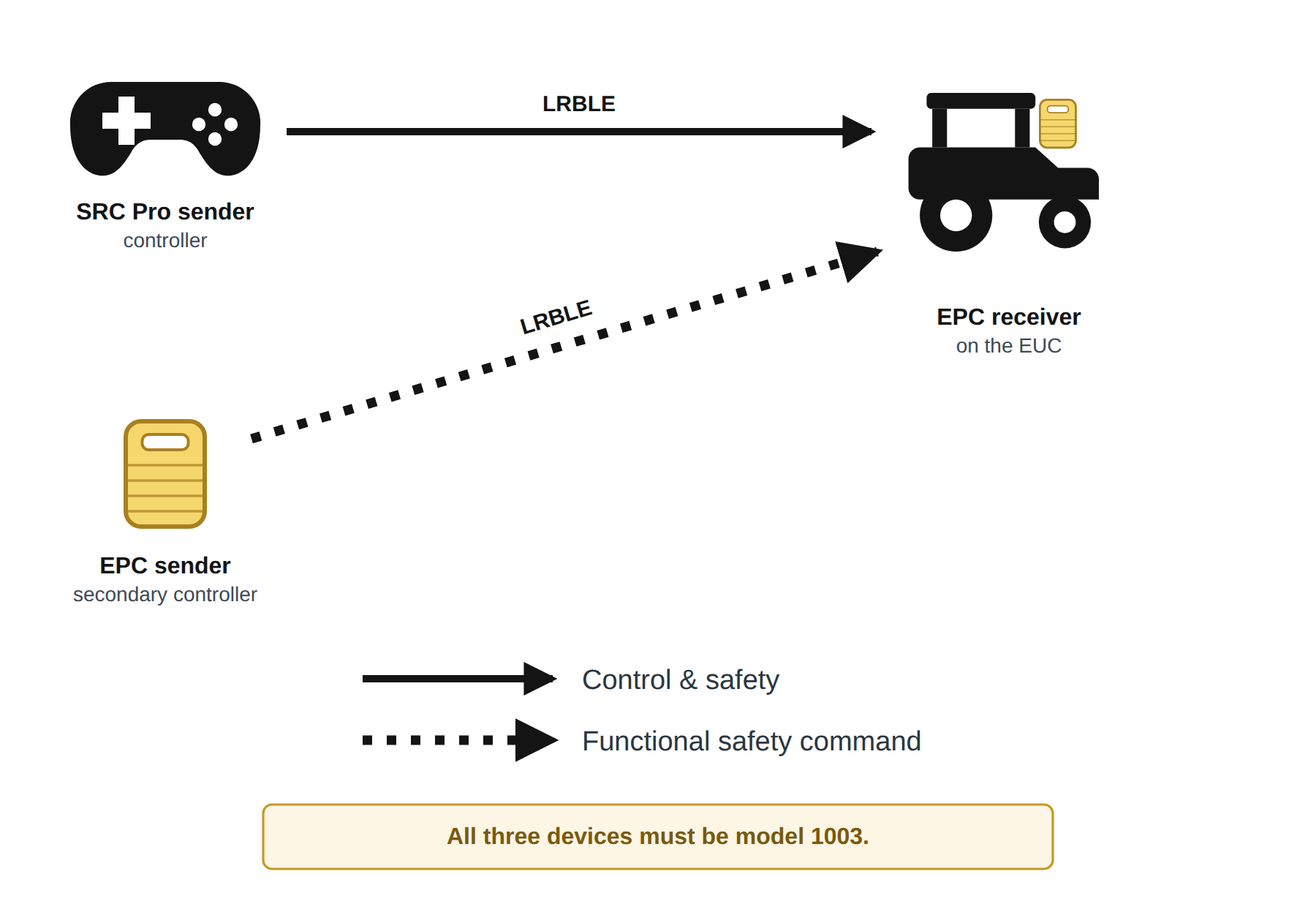
In this configuration an SRC Pro and an EPC both act as senders to a single EPC receiver, and all three communicate over Long-Range Bluetooth (LRBLE). It suits work areas where the operator needs to drive a machine at a distance while a second person retains independent authority to stop it, and where running Ethernet or an ISM radio to the E-Stop station is impractical.
What each device does
- SRC Pro sender (the controller)
- Drives and maneuvers the equipment under control, and can send an E-Stop. This is the device the equipment operator holds.
- EPC sender (the secondary controller)
- Sends an E-Stop to the receiver. It does not control machine movement. Mount it where a supervisor can reach it — for example, overlooking the work area. It remains able to stop the machine when the SRC Pro is paired with and managing a different receiver.
- EPC receiver
- Wired to the equipment under control. Accepts safety and control signals from the SRC Pro, and safety signals from the EPC sender.
Requirements
- All three devices must be model 1003. LRBLE is carried only by the SRC Pro 1003 and the EPC 1003. A device of any other model cannot join an LRBLE configuration. For more information, see Device Models and Communication Methods.
- Exactly one receiver. A 2:1 configuration over LRBLE supports a single EPC receiver. Adding a second receiver changes the configuration: the additional receivers communicate over Ethernet, and the configuration is no longer LRBLE throughout.
- An antenna on each device. For more information, see Antennas.
The EPC sender communicates with the EPC receiver over LRBLE or Ethernet, not both. Which one applies is set on the General tab when you configure settings, and it determines what options you are offered at the device level. For more information, see Settings in a 2L1 LRBLE Configuration.
Range and Placement
LRBLE has a usable range of roughly 100–300 m, depending on line of sight, antenna placement, and the environment. Both links in this configuration — SRC Pro to receiver, and EPC sender to receiver — are subject to that range independently.
Position the EPC sender so that the whole area the machine will work in stays within range of it. A supervisor's E-Stop is only useful where it can be received.
Before putting this configuration into production, walk the boundaries of the work area and confirm that both senders maintain communication with the receiver throughout. Loss of communication for longer than the configured safety timeout causes the receiver to enter the safe state. For more information, see Wireless Communciation Loss
The two operator scenarios described under Two-to-One Configuration apply to this configuration as well: a second person can observe from a different vantage point and press the E-Stop on the EPC sender, and the EPC sender can still stop the EUC when the receiver has been placed in unsupervised mode.
Two-to-One with a WES Pro and an EPC
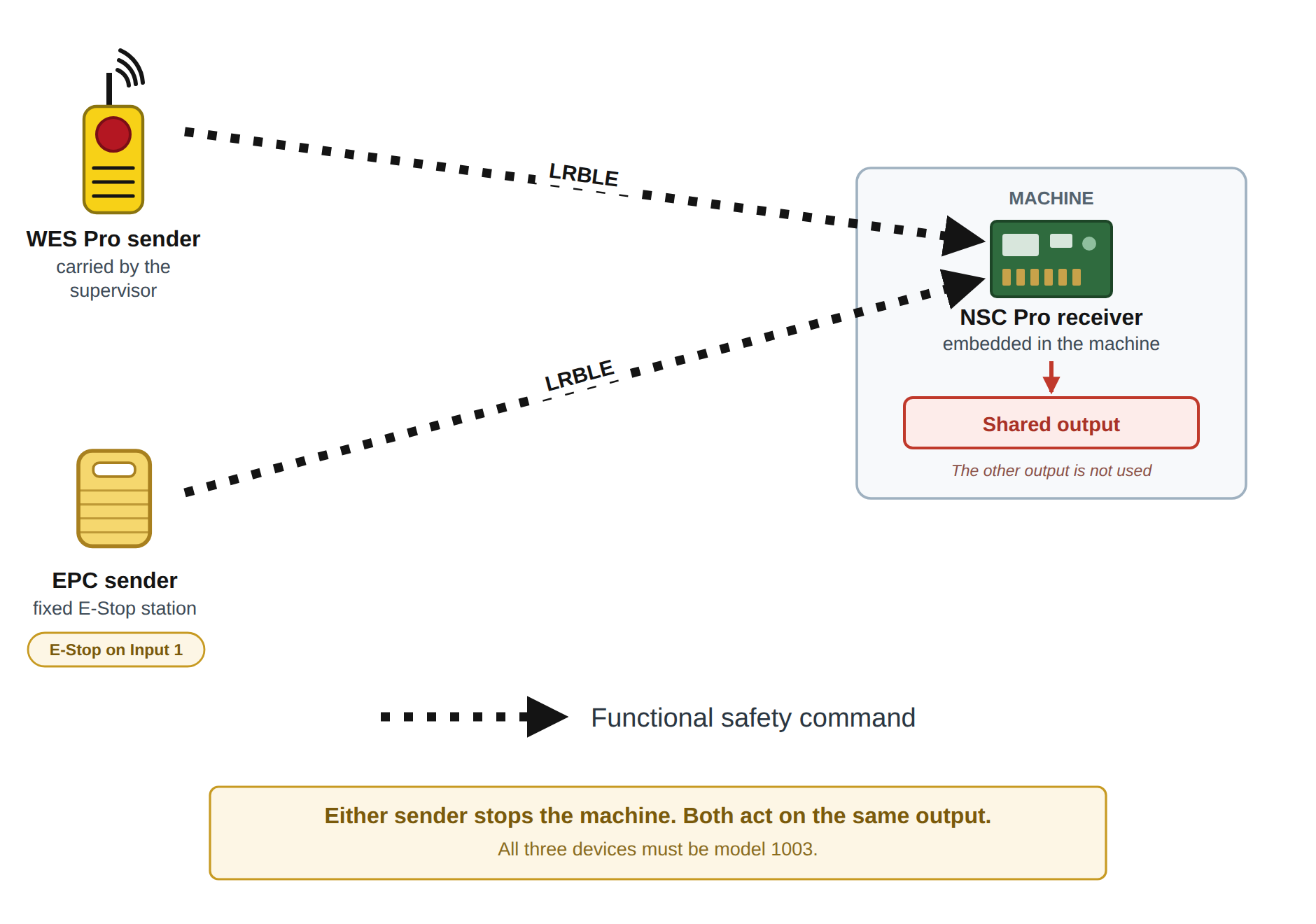
In this configuration a handheld WES Pro and a fixed EPC both act as senders to a single receiver, and either one can stop the equipment. Unlike the other Two-to-One configurations, neither sender drives or maneuvers the machine — both exist only to stop it.
It suits deployments where each machine has a dedicated human minder who carries a stop device, and the facility also needs a stop that does not depend on any one person being present. A robot working alongside people, supervised one-to-one during an early rollout, is the case this configuration was built for.
What Each Device Does
- WES Pro sender
- A handheld E-Stop carried by the person supervising the machine. Pressing its E-Stop button stops the equipment.
- EPC sender
- A fixed E-Stop station wired into the facility — for example at a doorway, a cell boundary, or a supervisor's station. An E-Stop device wired to its Input 1 stops the equipment. It does not control machine movement.
- Receiver
- An NSC Pro embedded in the machine, or an EPC wired to it. It accepts a stop from either sender.
Both Senders Act on the Same Output
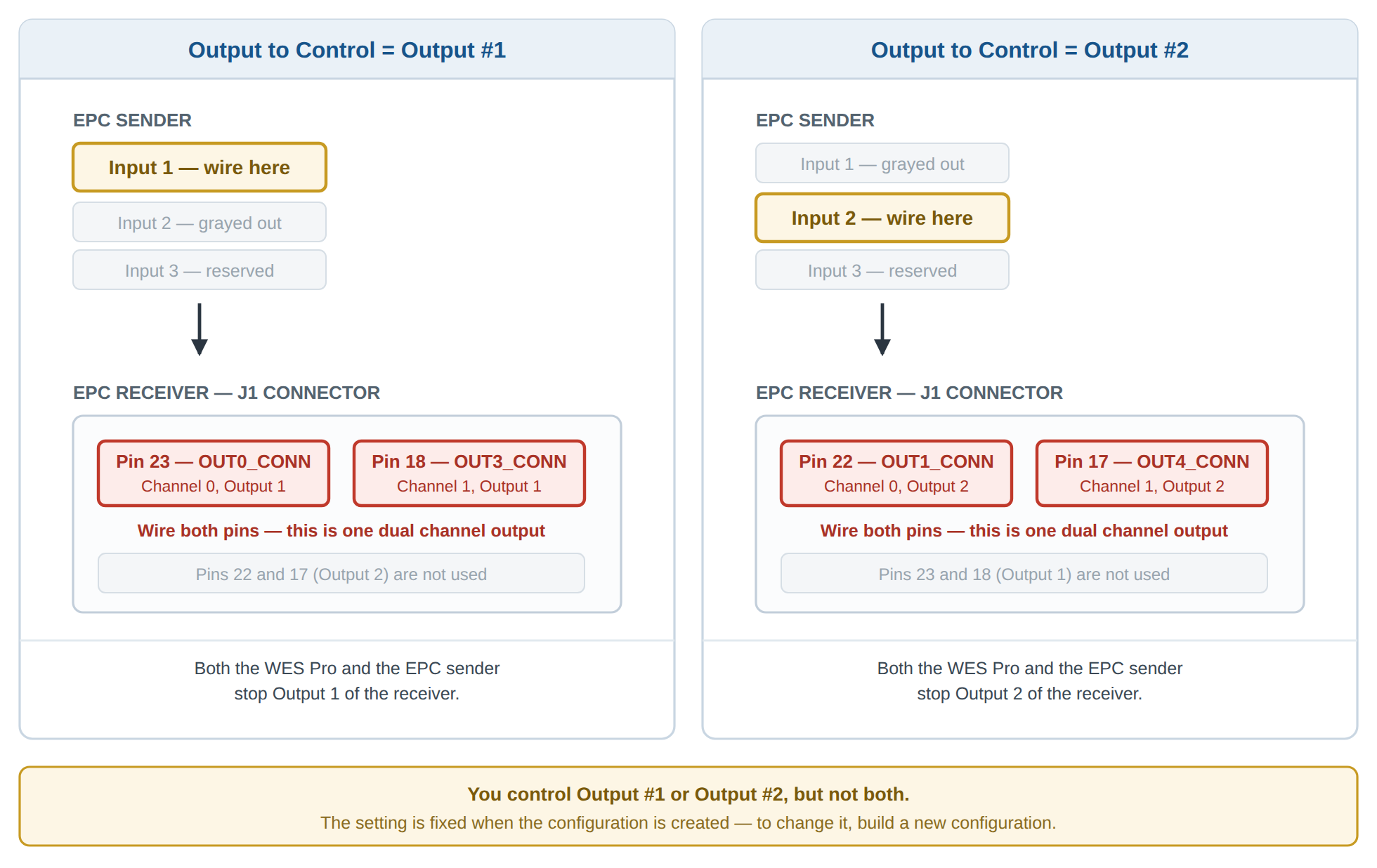
Both senders in this configuration act on the same output of the receiver, and you choose which one when you build the configuration. Set it with Output to Control on the General tab. For more information, see Choosing Which Output the Senders Control.
Whichever output you choose, the receiver's other output is not used by this configuration.
Both senders stop the same output. You cannot assign the WES Pro and the EPC sender to different outputs so that each stops a different part of the machine. If your application needs independent outputs per sender, this configuration does not provide it.
Because both senders act on the same output, the machine is stopped whenever either sender requests a stop, and it can only resume when neither is requesting one. Make certain that everyone operating the equipment understands that clearing the stop on one device does not restart the machine if the other device is still stopping it.
Choosing Which Output the Senders Control
Use Output to Control on the General tab to choose whether the senders drive Output 1 or Output 2 of the receiver. You can control one or the other, not both.
The choice applies to the whole configuration rather than to an individual device, so both senders act on the output you pick. Two things must then be wired to match it.
Wire the EPC sender's input to match
The EPC sender's usable input follows the output you selected. FORT Manager grays out the one that does not apply, and Input 3 is reserved and always grayed out.
| Output to Control | Wire the E-Stop Device to | J1 pins on the sender | Grayed Out |
|---|---|---|---|
| Output #1 | Input 1 | 6 (Channel 0) and 3 (Channel 1) | Input 2, Input 3 |
| Output #2 | Input 2 | 5 (Channel 0) and 2 (Channel 1) | Input 1, Input 3 |
Inputs are dual channel pairs in the same way outputs are. For more information, see Wiring Safety Devices and Power to EPC Sender
Wire the Receiver's Output Pins to Match
Each output is a dual-channel pair on the receiver's J1 connector — one pin from Channel 0 and one from Channel 1. Wire both pins of the pair for the output you selected.
| Output to Control | J1 Pins | Signals |
|---|---|---|
| Output #1 | 18 and 23 | OUT3_CONN (Channel 1, Output 1) and OUT0_CONN (Channel 0, Output 1) |
| Output #2 | 17 and 22 | OUT4_CONN (Channel 1, Output 2) and OUT1_CONN (Channel 0, Output 2) |
For the full pinout, see EPC I/O Connector Pinout and Cable.
Wire both pins of the pair. Each output is a dual channel output, and connecting only one pin leaves you with a single channel where the safety function assumes two.
If the output you selected in FORT Manager does not match the pins you wired, the equipment will not stop when a sender requests a stop. Verify the selection against the wiring before putting the configuration into production, and test a stop from each sender.
bYou cannont change the output later
The output a configuration controls is set when the configuration is created and cannot be changed afterwards. To use the other output, build a new configuration and load it onto your devices.
Building a configuration requires a connection to FORT Manager, so a wrong output selection cannot be corrected in the field.
Requirements
- All devices must be model 1003: LRBLE is carried only by the WES Pro 1003, the EPC 1003, and the NSC Pro 1003. For more information, see Device Models and Communication Methods.
- Exactly one receiver: A 2:1 configuration supports a single receiver.
- An antenna on each device that needs one: The WES Pro's antenna is built in; the EPC's and the NSC Pro's are accessories. For more information, see Antennas.
Why LRBLE rather than an IP Network
The EPC sender can reach the receiver over LRBLE or over an IP network. LRBLE is the default and is usually the right choice for a pilot deployment, because it needs no connection to the customer's network: no switch ports, no addressing, and no involvement from the site's IT organization.
An IP network becomes worth the setup effort as a deployment grows — when many machines share infrastructure, or when the site already manages a network the devices can join. For more information on how to select the interface, see Settings in a WES Pro and EPC Configuration.
If the receiver is an NSC Pro and you select Ethernet or Wi-Fi, the NSC Pro needs additional hardware, because it has no built-in Wi-Fi modem or wired Ethernet adapter. A LRBLE-only configuration needs none of that. For more information, see Setting up an NSC Pro for IP Networking (EPC Sender).
SRC Pro with Global E-Stop Configuration
In an SRC Pro with Global E-Stop configuration, an SRC Pro recognizes multiple receivers but can connect to and control only one EPC at a time, and in addition, an EPC can send a safety signal to all receivers at once.
Currently, use of NSC Pro receivers in a Global E-Stop configuration is not supported.
The Safe Remote Control Pro can control and send safety signals to any one EPC receiver at a time and the EPC sender can send safety signals to all the EPC receivers in the configuration at once.
For example, imagine a situation in which you have a number of autonomous machines that are parked in a yard for the night. At the beginning of the workday, you use a Safe Remote Control Pro to connect to one of the machines and drive it to the work area. Once the machine is at the work site, you put the EPC in unsupervised mode so the machine can work autonomously. You now walk back to the yard and use the Safe Remote Control Pro to connect to and pull out another machine.
At this point, the first machine that you moved is operating without the Safe Remote Control Pro in control. However, with this configuration, an EPC is still connected to the machine that is operating autonomously, allowing a supervisor to press the E-Stop button on the sender EPC and stop the machine if necessary.
In practice you could place an EPC sender in a location, such as a balcony, that overlooks the entire work area. After an operator releases one or more machines to work autonomously and walks out of the work area, a supervisor could still monitor the autonomous machines and issue an E-Stop command at any time.
The following figure illustrates this configuration. The EPC sender can send an E-Stop to every EPC that is connected to a vehicle and the Safe Remote Control Pro (using Machine Select) can connect to any one EPC at a time for safety and control functions.
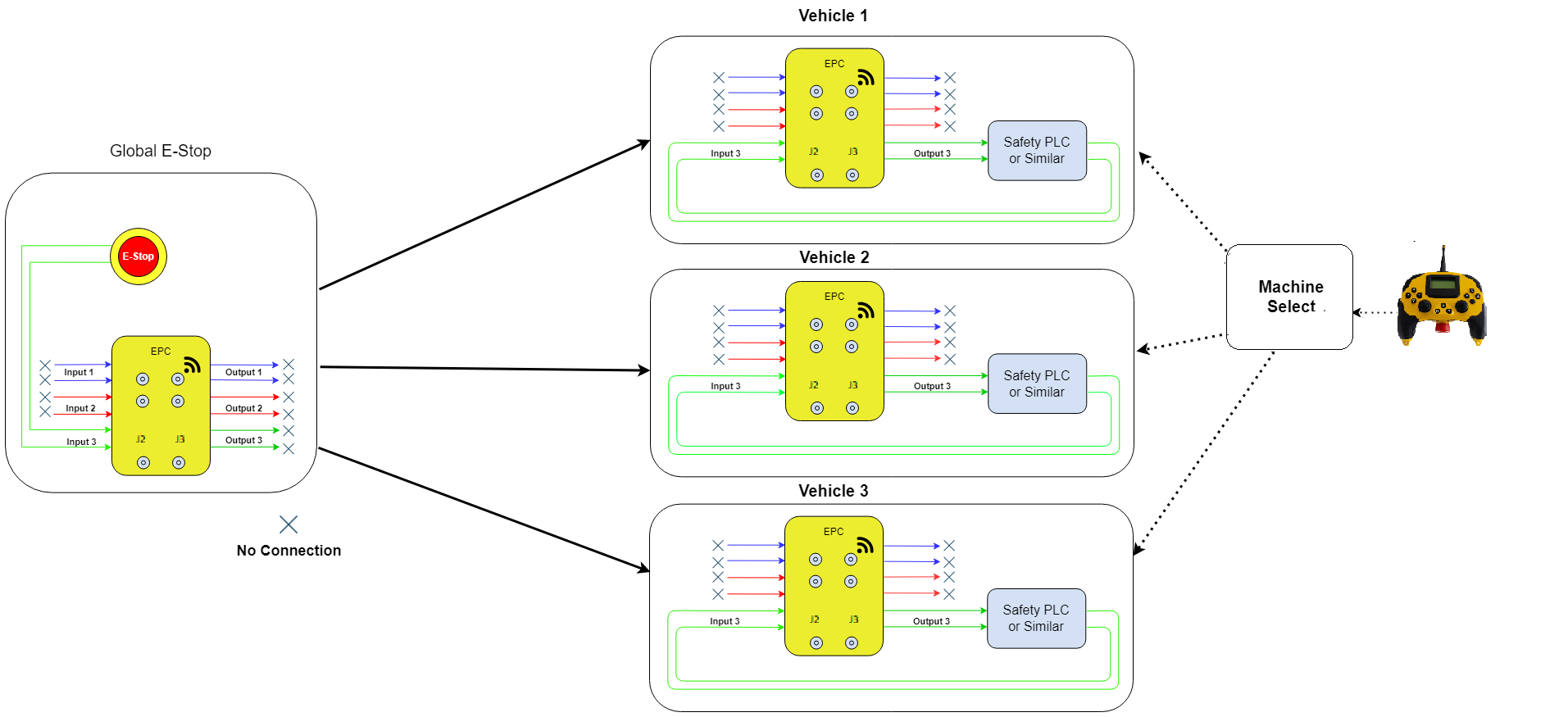
Note these points about this configuration:
-
Inputs 1 and 2 are unused on the sender EPC (single EPC on the left of the figure).
-
Outputs 1 and 2 are unused on the receiver EPCs (three EPCs on the right of the figure).
-
When a Safe Remote Control Pro is connected to a receiver EPC in supervised mode, pressing either the global E-Stop on the EPC or the E-Stop button on the Safe Remote Control Pro turns off Output 3 on the receiver EPC (also note that the Safe Remote Control Pro affects the connected machine only, whereas the global E-Stop shuts off Output 3 on all devices).
-
When a Safe Remote Control Pro is connected to a receiver EPC in unsupervised mode, only pressing the global E-Stop1 on the EPC will turn off Output 3 on the receiver EPCs. The Safe Remote Control Pro E-Stop is ignored and will not turn off Output 3.
The following table shows details about an SRC Pro and EPC Hybrid configuration:
| Sender | Receivers | Communication |
|---|---|---|
| One SRC Pro and one EPC | Up to 30 receivers (EPCs) in a configuration; all 30 in communication with the controlling EPC, but only one connection at a time to the SRC Pro | SRC Pro: Bluetooth or ISM EPC: Ethernet or Wi-Fi |
See the next section for steps you may need to take if your configuration connects devices through Ethernet, and your network contains complex message routing and firewall rules.
UDP Port Allocation for Ethernet Connections
If your configuration connects devices through Ethernet, and your network contains complex message routing and firewall rules, you may need to set up UDP port allocation rules to ensure that data packets move seamlessly back and forth between your devices over an Ethernet network. This section does not apply to configurations that communicate only over LRBLE, ISM, or Bluetooth.
In a configuration with an EPC sender and EPC receivers, a receiver EPC makes requests to the sender at destination port 5683 (~2/sec).
In response, the sender sends data packets
to the receiver (every 40 ms) to at least two randomly chosen UDP destination
ports but using fixed port 5683. The destination ports change
with the power cycle and may also change after an indeterminate amount of time
elapses.
Because the destination ports of the safety packets are not
fixed, you must set firewall filtering and port forwarding rules to use source
port 5683 for sending safety packets (for example on the
gateway serving the receiver EPC).
To configure firewall rules, issue the following two commands in a terminal:
iptables-AINPUT-s192.168.1.1-pudp--sport5683-jACCEPTiptables-APREROUTING-tnat-pudp--sport5683-jDNAT--to192.168.2.2where:
-
192.168.2.1is the IP address of the sender EPC in its subnet. -
192.168.2.2is the IP address of the receiver EPC in its subnet.
Here is a brief summary of what these commands do:
-
The rule implemented by the first command allows incoming UDP packets from IP address
192.168.1.1originating from source port5683to pass through the firewall. -
The rule implemented by the second command redirects UDP packets with source port
5683to the IP address192.168.2.2by modifying their destination address.
Building a Configuration
Use the FORT Manager Web App, the FORT Manager Desktop App, or the FORT API to build a configuration. These instructions are applicable to all types of configurations.
The procedures in this section describe the FORT Manager Web App. To build configurations programmatically — for example, to generate a set of configurations for field testing — see #config__building-config-with-fort-api.
Before you Begin
Make sure that:
-
You’ve created a FORT Manager account and added your devices to FORT Manager.
-
You know what kind of configuration you plan to build (refer to the Configurations table).
-
You know which communication method the configuration will use, and you have confirmed that every device you plan to add supports it. Configurations that use LRBLE require model 1003 throughout. For more information, see Device Models and Communication Methods.
-
You know the details of your IP network:
-
If using Ethernet, the gateway address, range of available IP addresses, netmask, and optional DNS server.
-
If using Wi-Fi, network name and password, gateway address, range of available IP addresses, netmask, and optional DNS server.
If you are using the FORT API, you have created an API key in FORT Manager and you know your organization ID.
-
-
If using CAN, which protocol — CANopen or J1939. Both are disabled by default. Which protocols are available depends on the receiver in your configuration:
-
An EPC receiver supports J1939 and CANopen.
-
An NSC Pro receiver supports J1939 only. For more information, see Data Interfaces (NSC Pro)
-
To Create a Configuration and Add Devices
(Requires the FORT Manager ConfigManager or Admin role.)
The following instructions are complete as far as creating a configuration and adding devices to it. The FORT Manager interface is intelligent and provides prompts and warnings to guide you through the process of adding devices, and adjusts the available options based on choices you make and on the features enabled for your organization. For more information, see What You See in FORT Manager.
-
Navigate to the FORT Manager Web App and enter your credentials when prompted.
-
Click Configurations in the left navigation pane.
-
Click New Setup.
-
On the Setup Details page, select one of the following:
-
use SRCP as my controller
-
use EPC as my controller
-
use WESP as my controller
-
If you are using a single sender, click Continue to accept the default of no secondary sender.
-
If you want to have an SRC Pro as well as an EPC sender, select use SRCP as my controller, then select Yes for an EPC secondary controller. For more information, see Two-to-One over Long-Range Bluetooth.
-
If you want to have WES Pro as well as SRC Pro senders, select use WESP as my controller, then select Yes for SRCP as a secondary controller.
- If you want to have a WES Pro as well as an EPC sender, select use WESP as my controller, then select Yes for an EPC secondary controller. For more information, see Two-to-One with a WES Pro and an EPC.
-
-
In Setup Name, type a name to identify your configuration and click Continue.
-
On the Select Sender page, select a device to use from the list to use as a sender and click Continue.
Note:A device that has reached end of support does not appear in the device list, and cannot be added to a new configuration. This does not mean the device has failed. For more information, see SRC Pro Models and Support Status.
-
Optionally, select the second controller (if you chose this configuration in Step 4) and click Continue.
-
On the Select Receiver(s) page, select receivers from the list and click Review Setup.
To build a 2:1 configuration that communicates over LRBLE:
- Every device must be model 1003 — for an SRC Pro and EPC pairing, the SRC Pro sender, the EPC sender and the EPC receiver; for a WES Pro and EPC pairing, the WES Pro, the EPC sender and the receiver. Devices that do not carry an LRBLE radio cannot be added to the configuration. For more information, see Device Models and Communication Methods.
- Select exactly one receiver. In a WES Pro and EPC configuration, the receiver can be an NSC Pro or an EPC. If you select more than one receiver, the additional receivers communicate over Ethernet and the configuration is no longer LRBLE throughout.
FORT Manager displays the sender(s) and receiver(s) in the configuration and displays the following message to alert you if settings are incomplete:
This configuration is incomplete. Go to the settings page to add missing info.
Go to the next procedure to configure settings.
To Configure Settings
The instructions for configuring settings will get you started but are not comprehensive. If you need help with any particular setting, click the info icon 🛈 next to it to see more information. Keep these points in mind when setting parameters:
-
FORT Manager displays the Warning symbol ⚠ next to the Settings menu, as well as next to the General or Devices tabs on the Settings menu if any settings need to be configured.
-
Required fields are highlighted.
-
When you choose a particular setting, such as Wi-Fi, additional fields appear or are highlighted; for example, if you select Wi-Fi for communication, you are prompted to enter a network name and password, if you select Ethernet, you are prompted for an IP address, etc.
-
Click Settings to configure settings for the new configuration.
Click General to configure settings that apply to all devices in the configuration.
In a configuration with two senders, FORT Manager lists a communication interface for each sender separately. The interface you select here determines which settings you are offered at the device level.
Table 10. Communication Interfaces in a 2:1 SRC Pro and EPC Configuration Sender Pair Sender Available Interfaces SRC Pro and EPC SRC Pro sender Long Range Bluetooth SRC Pro and EPC EPC sender Long Range Bluetooth, Ethernet WES Pro and EPC WES Pro sender Long Range Bluetooth WES Pro and EPC EPC sender Long Range Bluetooth (default); Ethernet if the EPC is model 1003; Ethernet and Wi-Fi if the EPC model is 1000, 1001, or 1002. The interface you select for the EPC sender determines which settings you are offered at the device level. For more information on the SRC Pro pairing, see Settings in a 2:1 LRBLE Configuration. For more information on the WES Pro pairing, see Settings in a WES Pro and EPC Configuration.
Note:For all configurations, you must specify a safety timeout, which specifies the maximum amount of time that the sender and receivers are not communicating before a fault occurs to initiate the safe state. Before putting your configuration into production, you should test various timeouts to find the optimal setting. For more information, see Wireless Communication Loss.
Also set on the General tab:
-
Output to Control — Output 1 or Output 2 of the receiver. Both senders act on the output you select; you cannot control both. This setting cannot be changed after the configuration is created. For more information, see Choosing Which Output the Senders Control.
- CAN Mode — Disabled, J1939, or CANopen. Which protocols are offered depends on the receiver: a configuration with an EPC receiver supports J1939 and CANopen, and a configuration with an NSC Pro receiver supports J1939 only. For more information, see Data Interfaces (NSC Pro).
- Safety Timeout — the maximum time the senders and receiver are not communicating before a fault occurs and the safe state is initiated.
Note:Before putting your configuration into production, test various timeouts to find the optimal setting. With two independent senders, confirm the timeout behaves correctly for each of them. For more information, see Wireless Communication Loss.
-
-
Click Save to save the general settings.
-
Click Devices and select a device from the drop-down list to configure settings specific to each device.
FORT Manager displays the Warning symbol ⚠ next to any device that requires you to configure settings.
-
Click Save when you’ve completed configuration of all devices.
Once you’ve built a configuration, you must load it onto each device in the configuration for it to take effect (see Loading a Configuration onto Your Devices ).
Settings in a 2:1 LRBLE Configuration
When both senders in a 2:1 configuration communicate over Long-Range Bluetooth, some device-level settings are fixed by that choice and are not offered for editing. This section explains what changes and why.
The EPC sender's interface is set on the General tab
When you select Long Range Bluetooth for the EPC sender on the General tab, Ethernet is no longer offered as an interface option at the device level for that device.
To change the EPC sender from LRBLE to Ethernet, return to the General tab and change the interface there. You cannot change it from the device-level settings.
Safety I/O on the EPC sender
How FORT Manager treats the EPC sender's safety inputs depends on the configuration:
| Configuration | Safety Input Behavior |
|---|---|
| SRC Pro with Global E-Stop Configuration | Inputs 1 and 2 are unused. The E-Stop acts on Output 3 of the receivers. |
| Two-to-One over Long-Range Bluetooth (SRC Pro and EPC over LRBLE) | No safety I/O options are offered; the assignment is fixed by the configuration. |
| Two-to-One with a WES Pro and an EPC (WES Pro and EPC) | Follows the Output to Control selection: Input 1 is configurable for Output #1, Input 2 for Output #2. The other is grayed out. Input 3 is reserved and always grayed out. For more information, see Choosing Which Output the Senders Control. |
Wiring and configuration must align. Wire the E-Stop device on the EPC sender to the input that the configuration actually uses — this differs between configurations. For more information, see Wiring Safety Devices and Power to EPC Sender.
CAN and IP network settings
- CAN— If CAN is not enabled, no additional device-level settings are required for this configuration.
- IP network — IP network settings appear at the device level for both the EPC sender and the EPC receiver only when Ethernet is selected. In an LRBLE-throughout configuration there is no IP network to configure.
If you select Ethernet for the EPC sender, the configuration behaves as any other Ethernet configuration: IP network settings appear at both EPCs, and you may need to set UDP port allocation rules. For more information, see UDP Port Allocation for Ethernet Connections
Settings in a WES Pro and EPC Configuration
After you set the communication interfaces on the General tab, click Devices and select each device in turn. The settings you are offered depend on the device's role and on the interface you selected.
EPC Sender
| Settings | Behavior |
|---|---|
| Interface | Read-only. Shows the value you selected on the General tab. To change it, return to the General tab. |
| IP Network Settings | Appears only when the interface is Ethernet or Wi-Fi. |
| Input 1 | Configurable when Output to Control is set to Output #1. Otherwise grayed out. |
| Input 2 | Configurable when Output to Control is set to Output #2. Otherwise grayed out. |
| Input 3 | Reserved. Always shown grayed out. |
Wire the E-Stop device on the EPC sender to the input that matches your Output to Control selection — Input 1 for Output #1, Input 2 for Output #2. The other input does nothing. For more information, see Choosing Which Output the Senders Control and Wiring Safety Devices and Power to EPC Sender.
WES Pro Sender
The WES Pro has a built-in E-Stop button and no configurable inputs, so it has no device-level safety I/O settings. Its interface is Long Range Bluetooth.
NSC Pro Receiver
| Setting | Behavior |
|---|---|
| Interface | Read-only. Shows the value you selected on the General tab. |
| IP Network Settings | Appears only when the interface is Ethernet or Wi-Fi. The NSC Pro needs additional hardware for either. For more information, see Setting up an NSC Pro for IP Networking (EPC Sender). |
| CAN Node ID | Appears when J1939 is enabled on the General tab. |
| Stop Category | CAT0 (Immediate Stop) or CAT1 (Controlled Stop). CAT1 adds a delay you configure, after which Output 2 also turns off. For more information, see Relationship of Inputs and Outputs. |
| OSSD | A toggle. OSSD test pulses are enabled by default and detect shorts on the safety outputs. For more information, see OSSD Pulses. |
If you turn OSSD off, your safety circuit loses the short detection those pulses provide. Turn it off only if a downstream device cannot tolerate the pulses and you have another means of detecting a short. For more information, see Potential side effects of OSSD pulses.
EPC Receiver
| Setting | Behavior |
|---|---|
| Interface | Read-only. Shows the value you selected on the General tab. |
| IP Network Settings | Appears only when the interface is Ethernet or Wi-Fi. |
| CAN Node ID | Appears when J1939 or CANopen is enabled on the General tab. |
When the configuration uses LRBLE and CAN is disabled, the EPC receiver has no settings to configure and FORT Manager does not list it under Devices. The receiver is still part of the configuration and you must still load the configuration onto it. For more information, see Loading a Configuration onto Your Devices.
If CAN is not enabled, no further device-level settings are required for an LRBLE-only configuration.
Modifying a Deployed Configuration
If you add or remove devices from a deployed configuration, you must take some steps to be certain that the correct configuration is deployed to all devices and that all receivers are communicating with the correct transmitter(s).
If you remove a device from a configuration that has not been loaded to its devices, there are no safety issues. A configuration has no effect on any device until it's been loaded (deployed) to one or more of the devices in the configuration.
Removing a Receiver from a Deployed Configuration
When you remove a receiver from a deployed configuration, you must ensure that it is no longer listening to the transmitters remaining in the configuration. For example, suppose that you remove from service a tractor with an attached EPC or NSC Pro receiver. Then you remove the receiver from the configuration. At this point, you might think that the receiver is no longer powering the tractor. However, although you modified the configuration, the device itself still contains the old configuration, and as long as it's powered on, it continues to listen to any transmitters for which it was programmed to listen.
When you remove one or more receivers from a configuration, you are prompted as follows:
The following receiver(s) from the configuration have been removed: [Receiver IDs]. These receiver(s) will continue to listen to the transmitter(s) in the configuration. To prevent unsafe conditions, perform ANY of the following actions on the removed receiver(s):

- Remove the receiver(s) from the machine or disconnect from power
- Apply a blank configuration to the receiver(s)
- Add the receiver(s) to a new configuration and reconfigure them
You can ignore this message if you haven’t loaded the configuration to any devices yet.
If you don’t intend to use the device(s) again, you can remove them from the machine or disconnect them from power.
On the other hand, if you anticipate a need to reuse the the receiver in the future, but don’t yet have a new configuration ready, you can apply a blank configuration to the device(s):
To Apply a Blank Configuration
-
In FORT Manager, after you remove a device, tether it to the computer that is running FORT Manager.
-
Click the link Apply Blank Config that pops up.
The info pane for the device opens.
-
Click the Update link to apply a blank configuration to the device.
The device now indicates that it has a blank configuration. Even if powered on, the device is unable to communicate with any other FORT device.
The device that you removed is now available to add to another configuration whenever you choose to do so. The receiver will keep its outputs low, meaning the robot or machine will remain in an unpowered state, until the receiver is flashed with a new, non-blank configuration and pairs with a transmitting device.
It’s a best practice to redeploy the configuration to the transmitter when you remove a receiver, though not strictly necessary. It is not necessary to redeploy the configuration to the remaining receivers since nothing has changed for them. However, FORT Manager will show all devices as Ready to Deploy rather than Deployed, and if you want FORT Manager to display the correct deployment status, you must redeploy to every device in the configuration (see To Redeploy a Configuration). The status column on the Devices page is not affected by this issue; it reports reachability, not deployment (see Device Status).
Removing a Transmitter from a Deployed Configuration
When you remove a transmitter from a deployed configuration, and replace it with a new one, you must deploy the configuration to the new transmitter and redeploy it to all the receivers in the configuration (see To Redeploy a Configuration). You don’t have to do anything special to the transmitter you removed. You can store it or reuse it in a different configuration.
Adding a Receiver to a Deployed Configuration
When you add a receiver to a One-to-Many configuration (an EPC sender with EPC or NSC Pro receivers), you must deploy the configuration to the new receiver.
You don’t need to redeploy the configuration to the original receivers in the configuration, however FORT Manager will show all devices as Ready to Deploy rather than Deployed. If you want FORT Manager to display the correct status, you must redeploy to every device in the configuration (see To Redeploy a Configuration). This is a known issue that is slated to be fixed with an upcoming release.
When you add a receiver to a Machine-Select Configuration (an SRC Pro sender with multiple potential EPC or NSC Pro receivers), or an SRC Pro with Global E-Stop Configuration (an SRC Pro and EPC transmitter with EPC receivers) you must deploy the configuration to the new receiver and to the SRC Pro transmitter.
You don’t need to redeploy the configuration to the original receivers in the configuration, however FORT Manager will show all devices as Ready to Deploy rather than Deployed. If you want FORT Manager to display the correct status, you must redeploy to every device in the configuration (see To Redeploy a Configuration). This is a known issue that is slated to be fixed with an upcoming release.
To Redeploy a Configuration
You can redeploy a configuration with the FORT Manager Desktop App.
The following procedure outlines the procedure to redeploy a configuration using the FORT Manager Desktop App:
-
In FORT Manager Desktop, select one of the devices and click Tether.
The application displays information about the device, including the name of the configuration to which the device belongs.
-
Click Update next to the configuration name to upload the configuration to the device.
The application shows that the configuration has been updated and automatically untethers the device. You can unplug the device from the computer unless you have a firmware update to apply as well.
Repeat this procedure for every device in the configuration.
If you are using the CLI tool for configuration, see Loading a Configuration onto Your Devices.
Bulk Actions on the Devices Page
The Devices page lets you select several devices with the row checkboxes and then assign, export, or delete them together. Assign and export are convenience operations. Bulk delete is not.
Deleting a device that belongs to a deployed configuration has the same effect as removing it from that configuration, and the same safety consequence: the device still holds the configuration it was loaded with, and while it is powered on it continues to listen to the transmitters it was programmed to listen to. Deleting it from FORT Manager does not change what the hardware does.
Before you bulk delete, for every receiver in the selection perform ANY of the actions listed in Removing a Receiver from a Deployed Configuration: remove the receiver from the machine or disconnect it from power, apply a blank configuration to it, or add it to a new configuration and reconfigure it.
A device can belong to more than one configuration. Deleting it removes it from all of them. Check every configuration the device is a member of before you delete. For more information, see Multiple Configurations for a Device.
Export writes the selected rows to a file and changes nothing on the devices.