Updating Firmware on Your Devices
This appendix explains how to find out when new firmware is available for your Pro Series devices and how to install it, using the FORT Manager Desktop App or either of the FORT command-line tools.
For all devices, FORT releases periodic updates to the firmware for performance, safety, and security reasons.
When new firmware is released it appears in the firmware release table on the Dashboard page with a New badge. You can also navigate to the Firmware page to see the latest version that is available for each type of device, together with the downloads. If you are not sure whether your firmware is up to date, or if you are eligible for updates, email support@fortrobotics.com or submit a request from the Dashboard page of FORT Manager (Submit Request) to get help.
You can access the firmware interface of any Pro Series device in any of the following ways:
-
By using the FORT Manager Desktop application (see Updating Pro Series Device Firmware with Desktop App).
-
Directly through a USB connection using the
fort_cli_cfgtool (see Updating the Firmware with the CLI Tool).
FORT does not publish further firmware for a model that has reached end of support. The device keeps the firmware it is running. For more information, see SRC Pro Models and Support Status.
Firmware updates are one-way. A Pro Series device accepts a newer firmware version only; you cannot return one to an earlier version, with the FORT Manager Desktop App or with either command-line tool. Check the version on the Firmware page against the version on the device before you start.
The Firmware Page
The Firmware page lists the published firmware version for each device type and carries the Downloads card for the Desktop App, the CLI Configuration Tool, and the FORT SDK.
Each row carries a status badge: Up to date where nothing is needed, or the time remaining on the download, for example 77d left. For more information, see Download Expiry.
Firmware is published for each device type separately. FORT does not publish further firmware for a model that has reached end of support, and no device can be returned to an earlier version.
Download Expiry
Downloads offered on the Firmware page carry an expiry. The status badge on each row shows the time remaining — for example 77d left — or Up to date where no action is needed. The expiry travels with the download, so it applies wherever that file ends up: stored inside the Desktop App, saved to your file system for fort_cli_cfg, or fetched with fortcli device firmware download.
Check the expiry badge before you rely on a file you downloaded earlier. This matters most when you are preparing to work without an internet connection: a file downloaded and stored for offline use can expire while it is sitting on your machine, and you cannot refresh it from a site with no connectivity. For more information, see Before You Begin.
If a download has expired, return to the Firmware page while connected to the internet and download it again. Files already applied to a device are unaffected; expiry applies to the download, not to firmware or a configuration that is running.
Updating Pro Series Device Firmware with Desktop App
This section explains how to update the firmware for any type of Pro Series device with the FORT Manager Desktop App. Note that this is the Desktop app, not the Web app; if you don’t already have it, you can download the Desktop app, Windows or Linux version, from the Web app or directly from GitHub.
To Update Firmware using FORT Manager Desktop App
Required Items:
-
A newer firmware version is available.
-
Windows or Linux computer running with Ethernet networking capability (required for using the FORT Manager Desktop app).
-
FORT Manager Desktop app (find latest version in FORT Manager Web app or at GitHub).
-
The Device is in a safe state.
To Update Firmware with the Desktop App
-
Launch the FORT Manager Desktop App on your computer.
-
Boot up or power on your device.
-
Connect your computer to the device:
-
For an EPC, connect over Ethernet to port J2 on the EPC using the M12-RJ45 cable.
-
For an NSC Pro, SRC Pro, or WES Pro, connect via USB. Note that the WES Pro requires the docking station.
The application displays a message that it has detected a device for tethering. If multiple devices are connected to the computer, the application displays a list of devices to choose from.
-
-
Select the device and click Tether.
The application displays information about the device including the name of the configuration to which the device belongs.
-
If FORT Manager doesn’t auto detect the device, click Tether a Device and select the type of device:
-
For an EPC, enter the IP address.
-
For other devices, enter the COM port, generally COM3.
-
-
Click Connect.
-
-
Click Update next to Firmware to upload the firmware to the device.
The application shows that the configuration has been updated and automatically untethers the device. You can unplug the device from the computer unless you have a firmware update to apply as well.
Repeat this procedure for every device in the configuration.
To Download Firmware for Offline Loading
One of the advantages of the desktop app is that you can use it without an internet connection. If you plan to load configurations or make firmware updates when the internet is not available, you can download the firmware and configurations when connected to the internet and store them in the app for later retrieval.
-
Launch the FORT Manager Desktop App on your computer.
-
Click Firmware.
-
Next to the type of device to update, click Download.
The Download Status changes to Downloaded.
Downloaded files are stored in the application, not in the computer’s file
system. To download a file for use with the fort_cli_cfg
tool, click the version number next to a device and save it to your file
system.
Repeat for any other firmware that you plan to upload when offline.
Updating the Firmware with the CLI Tool
This section explains how to update Pro Series device firmware with the CLI tool. The previous section shows how to do so with the desktop app.
Depending on your type of device, go to one of the following procedures:
If you haven’t done so already, download the firmware upgrade file for your type of device by completing the steps in the following procedure (click the procedure to open it):
To Download the Firmware Upgrade File
Requires FORT Manager DeviceManager or Admin role.
-
Launch FORT Manager and enter your username and password when prompted.
-
Click Firmware in the left navigation pane to open the Firmware page.
-
Click the version number next to your type of device and save the file to a location on your computer.
Note that the file is in a compressed format but you don’t need to uncompress it to install it.
The Downloads card on this page holds the Desktop App, the CLI Configuration Tool, and the FORT SDK. It does not hold device firmware; firmware comes from the version link in the device-type row.
If you’re using the Desktop App, don’t click the Download link next to the device type. It downloads the firmware update file to FORT Manager desktop to make it available for offline update. For updating with the CLI Tool, you need to download the file through the version link.
-
(Optional, this step is required only if you are running FORT Manager in a browser on a different computer than your Linux computer, for example, on a Windows machine. If you are running FORT Manager on a Linux machine, you can skip this step.)
Copy the file from a directory on your Windows machine to the home directory on your Linux computer by using the secure copy command (
scp):-
Open a terminal on a Windows machine.
-
Type the following (replace the values in brackets with your values):
scpC:\\<myDir>\\<device_firmware_file><user>@<ipaddress>:/home/<user>
-
Updating EPC Firmware with the CLI Tool
Required Items
-
Linux computer running (Ubuntu 20.04) or a Windows machine.
-
Firmware upgrade file for your device type.
You can download an archive package that contains the latest version from FORT Manager on the Firmware page by clicking on the version number next to the type of your device (see Firmware Download Procedure. ).
-
Latest FORT CLI Configuration Tool (
fort_cli_cfg).If you don’t already have this tool, you can download it from the Firmware page of FORT Manager.
To Install the EPC Firmware Update File
Requires Admin or Operator role.
-
Power on the EPC.
-
Connect your Linux computer to the EPC J2 port using an M12-RJ45 cable.
-
Open a terminal and execute the FORT CLI Configuration Tool:
fort_cli_cfg-e192.168.3.10-mWhere:
-
-e192.168.3.10-
Specifies the EPC’s IP address (default value, yours might be different).
-
-
-m(--menu)-
Specifies the interactive menu option for the configuration tool.
-
-
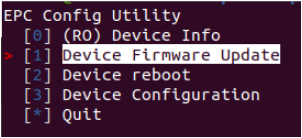
Use the arrow keys to navigate to Device Firmware Update and press Enter.
-
Use the arrow keys to navigate to Firmware Update and press Enter.
-
Type the path to the update file and press Enter, for example:
./epc-prod-update-1014.tar.zstNote that the update process may take up to three minutes to complete.
-
Use the arrow keys to navigate to Device reboot and press Enter to reboot the device.
Power cycling the device with the power button is not equivalent to a firmware reboot via the Device reboot option of the CLI tool.
To verify that the device firmware was updated successfully, do the following with the Linux computer still connected to the EPC:
-
Run the configuration tool again with the menu option:
fort_cli_cfg-e192.168.3.10-m -
Use the arrow keys to navigate to (RO) Device Info and press Enter.
-
Use the arrow keys to navigate to Version Info and press Enter.
Updating NSC Pro, SRC Pro, or WES Pro Firmware with the CLI Tool
This section shows how to use the CLI tool update the firmware on an NSC Pro, SRC Pro, or WES Pro in the field.
Required Items
-
Linux computer running (Ubuntu 20.04) or a Windows machine.
-
Firmware upgrade file for your device type.
-
You can download an archive package that contains the latest version from FORT Manager on the Firmware page by clicking on the version number next to the type of your device (see Firmware Download Procedure).
-
-
Latest FORT CLI Configuration Tool (
fort_cli_cfg).-
If you don’t already have this tool, you can download it from the Firmware page of FORT Manager.
-
To Upgrade the NSC Pro, SRC Pro, WES Pro Firmware Through the CLI Tool:
Requires Admin or Operator role.
-
Connect the USB port on the device to a Linux computer.
-
Open a terminal and execute the FORT CLI Configuration Tool:
(Note that you need to execute permission to
/dev/ttyACM0.)fort_cli_cfg-n/dev/ttyACM0-mWhere:
-n (nxp) /dev/ttyACM0Specifies an NSC Pro, SRC Pro, or WES Pro device and identifies the USB port in use; your port could be different.
-m(--menu)Specifies the interactive menu option for the configuration tool.
-
Use the arrow keys to navigate to Device Firmware Update and press Enter.
-
Use the arrow keys to navigate to Device firmware file data and press Enter.
-
Use the arrow keys to navigate to Upload file and press Enter.
-
Type the path to the update file and press Enter, for example:
./4.1.1-NSC-Production-ProdSigned.zipNote:The update process may take up to three minutes to complete.
-
Use the arrow keys to navigate to Device reboot and press Enter to reboot the device.
Note:Power cycling the device manually is not equivalent to a firmware reboot via the Device reboot option of the CLI tool.