Wire and Mount Nano Safety Controller Pro
This chapter explains how a Nano Safety Controller Pro's inputs and outputs relate to each other, how to wire the board to your equipment for either a wireless radio or an IP network, and how to select an antenna and embed the board in your machine.
Before jumping to the actual procedures, we recommend that you read the material in the following sections:
-
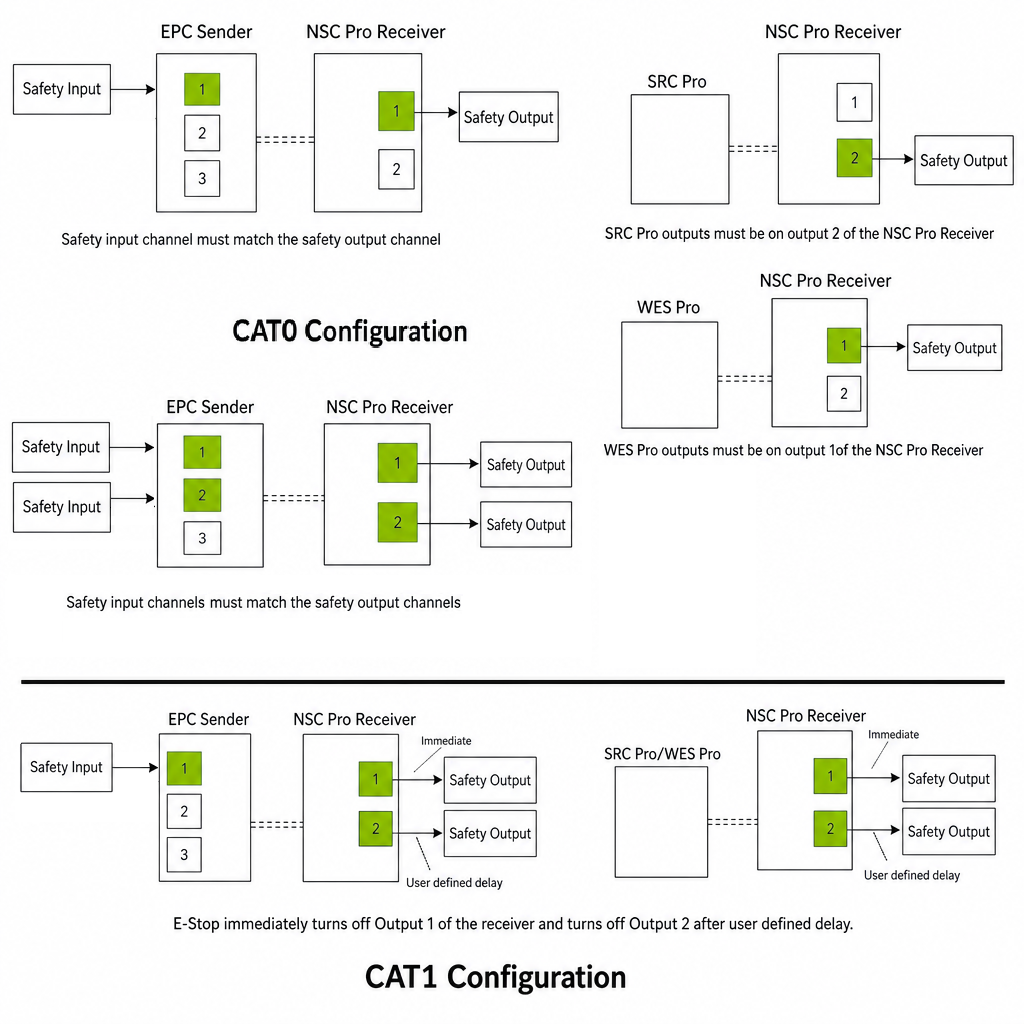
Relationship of Inputs and Outputs, which explains the differences different relationships between the inputs and outputs depending on the type of sender and on whether your system is configured for CAT0 (Immediate Stop) or CAT1 (Controlled Stop).
-
Understanding NSC Pro Safety Output Wiring, which explains the use of safety relays connected to NSC Pro outputs.
When you’re ready to wire up your devices, we provide separate procedures depending on the type of your configuration:
-
Wiring an NSC Pro for a Wireless Radio (SRC Pro, WES Pro, EPC) explains how to wire the NSC Pro to your equipment for any type of sender when communicating via ISM or Bluetooth.
-
Setting up an NSC Pro for IP Networking (EPC Sender) explains how to wire the NSC Pro to your equipment when communicating via Wi-Fi or Ethernet. Because the NSC Pro does not come with a Wi-Fi modem or wired Ethernet adapter, extra hardware and instructions are necessary to support this configuration.
Relationship of Inputs and Outputs
FORT Manager enables you to configure an NSC Pro receiver with one of two shutdown options, CAT0 immediately shuts down any corresponding outputs on the receiver, or CAT1 which provides a phased output, as follows:
-
CAT0 configuration – The type of sender determines the specific behavior:
-
An EPC sender defines a one-to-one correspondence between the inputs on the EPC and each output of all receivers in the configuration. Input 1 of the sender controls Output 1 of the receiver and Input 2 of the sender controls Output 2 of the receiver. Applying the E-Stop immediately turns off the corresponding output on the receiver.
-
For an SRC Pro sender the built-in E-Stop button is pre-defined to control Output 2 of the receiver; applying the E-Stop immediately turns off Output 2 of the corresponding receiver.
-
For a WES Pro sender the built-in E-Stop button is pre-defined to control Output 1 of the receiver; applying the E-Stop immediately turns off Output 1 of the corresponding receiver.
Note:The assignments above are the defaults for a configuration with a single sender. In a Two-to-One configuration that offers an Output to Control setting, that setting determines which output both senders act on, and it overrides these defaults. For more information, see Choosing Which Output the Senders Control.
-
-
Two senders on one receiver
In a Two-to-One configuration, both senders act on the same output of the receiver. Where the configuration offers an Output to Control setting, that setting determines which output — and it overrides the per-sender defaults described above.
Table 1. Output Controlled in a Two-to-One Configuration (CAT0) Output to Control WES Pro EPC sender Receiver output used Output #1 Built-in E-Stop Input 1 Output 1 Output #2 Built-in E-Stop Input 2 Output 2 The EPC sender's usable input tracks the output you select: Input 1 for Output #1, Input 2 for Output #2. The input that does not match is grayed out in FORT Manager and has no effect. For more information, see Choosing Which Output the Senders Control.
Important:The output stays off while either sender is requesting a stop. Releasing the E-Stop on one sender does not turn the output back on if the other sender is still stopping it.
-
CAT1 configuration – For all types of senders, allows a phased shutdown of the equipment:
-
Applying the E-Stop immediately turns off Output 1 of the receiver and after a user-defined delay (up to 30 seconds, configured by you in 0.1 sec increments in FORT Manager) turns off Output 2 of the receiver.
-
When the E-Stop request is removed, both outputs (Output1 and Output2) turn on at the same time, i.e., there is no delay between them during reactivation.
-
For more information see Understanding Stop Categories for Machinery Stopping Functions.
The following diagram illustrates these relationships.
Understanding NSC Pro Safety Output Wiring
For each NSC safety output that you want to use, you must connect both channels to two relays that are connected in series, or to a dual channel safety relay. The circuit that is defined by these relays controls connection of a solenoid to the equipment under control. If safety is not requested, the NSC keeps the output on to keep the relays closed. On the other hand, if safety is requested, the NSC turns off the outputs, which opens the relays and breaks connection of the circuit to the EUC. In this case, if the EUC is using the circuit for power, when the contactors open, the machine shuts off.
The following figure shows an example of the two channels (CH0 and CH1) of one Endpoint Controller (EPC) output connected to two relays in series to control the power supply of the EUC:
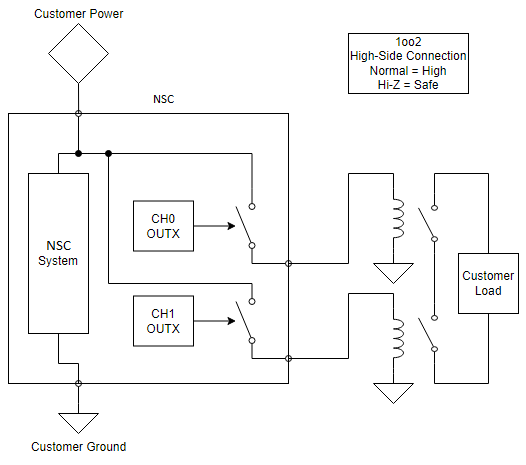
Note the following about this setup:
-
You must connect the NSC ground to the safety relay ground.
-
The NSC has automatic fault recovery.
-
We recommend using one of the relays that we have tested (from the following table) but if you don’t use one of these, be certain to use a safety relay and verify that it is compatible with OSSD.
The NSC Pro utilizes OSSD test pulses to detect shorts, so the downstream safety input must be able to filter out these pulses. See OSSD Pulses for detailed information on how Pro series receivers use OSSD pulses, including how to turn them off for NSC Pro devices.
Table 3 NSC Recommended and Tested Relays
| Manufacturer | Model | Supply Voltage |
|---|---|---|
| TE | V23047-A1005-A501 | 5 |
| TE | V23047-A1012-A501 | 12 |
| PANASONIC | SFS3-L-DC12V-D | 12 |
| OMRON | G7SA-3A1B DC12 | 12 |
See Recommended Relays for wiring diagrams for each of these relays.
Selecting Automatic or Manual Reset for Relays (NSC Pro)
When designing and implementing the safety circuit downstream from the NSC Pro, including the safety relays, be certain to reference ISO 13850, which defines the core principles for designing and implementing an emergency stop (E‑stop) function on machinery, and ISO 13849-1, which defines how to design and validate safety-related parts of control systems on machinery.
We highly recommend that for an NSC Pro’s output you attach relays that require manual reset, not relays that reset automatically. If you choose to use relays that reset automatically, be certain that your safety system prevents a hazardous situation from occurring when relays reset automatically.
Do not connect latching relays to NSC Pro outputs because the contactors of a latching relay will not open after power is removed from the coil, thereby creating an unsafe situation.
Wiring an NSC Pro for a Wireless Radio (SRC Pro, WES Pro, EPC)
This section shows how to wire an NSC Pro to your equipment for any type of sender when communicating over a wireless radio — ISM, Bluetooth, or Long-Range Bluetooth. The wiring is the same for all three.
If your devices will communicate via Wi-Fi or Ethernet, see the instructions in Setting up an NSC Pro for IP Networking (EPC Sender).
For all of the following wiring procedures, refer to NSC PRO 80-Pin I/O Connector Pinout, which lists each of the NSC Pro’s connector signals.
Electrostatic Discharge (ESD) Handling
The NSC Pro can be damaged by electrostatic discharge (ESD). To reduce the risk of ESD damage while installing an NSC Pro, take the following precautions:
-
Wear a grounded ESD wrist strap when handling the device.
-
Work on an ESD-safe mat or grounded surface.
-
Avoid touching exposed connector pins or internal circuitry.
-
Maintain ambient humidity above 30% when possible.
-
Discharge static by touching grounded metal before handling the device.
-
Store the controller in anti-static packaging when not installed.
Required Items
Before you begin, have on hand your FORT devices and your equipment to control (EUCs), as well as:
-
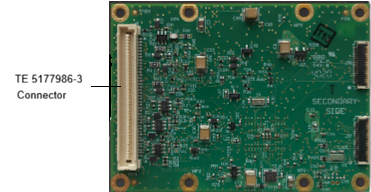
A TE 5-5179180-3 80-pin receptacle connector that you mate with the TE 5177986-3 80-pin connector plug on the secondary side of the board to wire the NSC Pro to the EUC, to a power source, etc.
-
An integration cable.
-
The relays to attach to the EUC. See NSC Pro Recommended Relays.
-
A configuration that you built in FORT Manager.
Verify whether the configuration is CAT0 (Immediate Stop) or CAT1 (Controlled Stop).
The type of sender in your configuration and whether you specify CAT0 or CAT1 determine which outputs you can wire on the NSC Pro receiver:
-
For CAT0 (Immediate Stop) configurations:
-
For an EPC sender, you may wire Output 1 only, or wire both Output 1 and Output 2. You cannot wire only Output 2, because Output 1 is the primary safety output.
-
For an SRC Pro sender, you must wire Output 2 only.
-
For a WES Pro sender, you must wire Output 1 only.
-
-
For CAT1 (Controlled Stop) configurations with any type of sender, the NSC Pro uses two independent safety outputs to support a controlled stop followed by power removal. Therefore you must wire both NSC Pro outputs, as follows:
-
Output 1 always performs the immediate shutdown portion of the stop.
-
Output 2 always performs the phased (delayed) shutdown portion of the stop.
This allows you to remove power immediately from one part of the EUC (via Output 1) while allowing another part (via Output 2) to complete a controlled stop before power is removed.
-
Be sure that the wiring matches the configuration selected in FORT Manager, including whether the system is set for CAT0 or CAT1 behavior.
To Wire the NSC Pro to the EUC
To begin, attach the TE 5-5179180-3 80-pin receptacle connector to the TE 5177986-3 80-pin connector plug on the secondary side of the board.
-
Connect pins 10 & 12 (PVIN) to the main power supply on the EUC. 1
-
Connect grounding pins, 8, 23, 46, 69, and 79 together at the same place (common power supply in the likely case that earth ground is not available).
See Grounding an NSC Pro for details.
-
If you are using CAN, connect the CAN bus on the NSC Pro to the EUC (CAN0, pins 24 and 26,).
Using the CAN bus is optional and if you are using the serial connection, you can’t use CAN.
Important:Termination resistors are important for reliable CAN bus communication. The NSC Pro integration cable does not come with any termination inside the cable. You may need a 120 ohm termination resistor if one isn’t already present in the CAN network.
-
If you are using a serial bus for diagnostics, connect one of the serial ports on the NSC Pro to the EUC (UART0, Pins 50 & 54, or UART1, pins 58 and 62).
Using the serial port is optional, and if you are using CAN, you can’t use the serial port to connect to the EUC.
-
For Output 1, connect pin 55 (Channel 0 Output 1) and pin 57 (Channel 1, Output 1) to the safety relay.
-
For Output 2 (if using), connect pin 78 (Channel 0, Output 2) and pin 80 (Channel 0, Output 2) to the safety relay.
-
Make the USB port available for configuring the NSC Pro by connecting pins 2 and 4 for data & pin 6 for power to the USB port on the NSC Pro.
Note that without power (from pin 6) the NSC Pro will not detect the USB connection.
Be certain to tie the ground from the USB source to the same common ground as the main power supply.
-
Optionally, to wire external LEDs to show the power, connection, and operational status of the NSC Pro:
-
Wire pins 5, 7, & 9.
-
Connect pin 18 to pull 3.3 V output (max current 50mA) from the onboard power supply to power the LEDs.
-
-
To provide a backup battery (3-3.3 V DC), for example to keep a clock running (which is required to guarantee that you get accurate time stamps from NSC Pro logs):
-
Wire pin 48.
-
Use Pin 46 to ground the battery to the same ground as the main power supply.
If you aren’t providing a battery, tie pin 48 to pin 18 (P3V3_OUT).
-
Each output on the NSC is designed with short circuit protection circuitry inside the NSC device. However, drawing more than 750 mA must be avoided since it won’t activate short circuit protection and could potentially damage the device. To satisfy applicable wiring codes and conditions, you are responsible for protection of field devices and wiring through appropriate fusing of the circuitry (see Recommended Relays for details about fuse size and diodes to use).
Setting up an NSC Pro for IP Networking (EPC Sender)
This section applies only when the NSC Pro communicates over Wi-Fi or Ethernet. If your configuration uses a wireless radio — ISM, Bluetooth, or LRBLE — you do not need the additional hardware or the FORT SDK described here. For more information, see Wiring an NSC Pro for a Wireless Radio (SRC Pro, WES Pro, EPC).
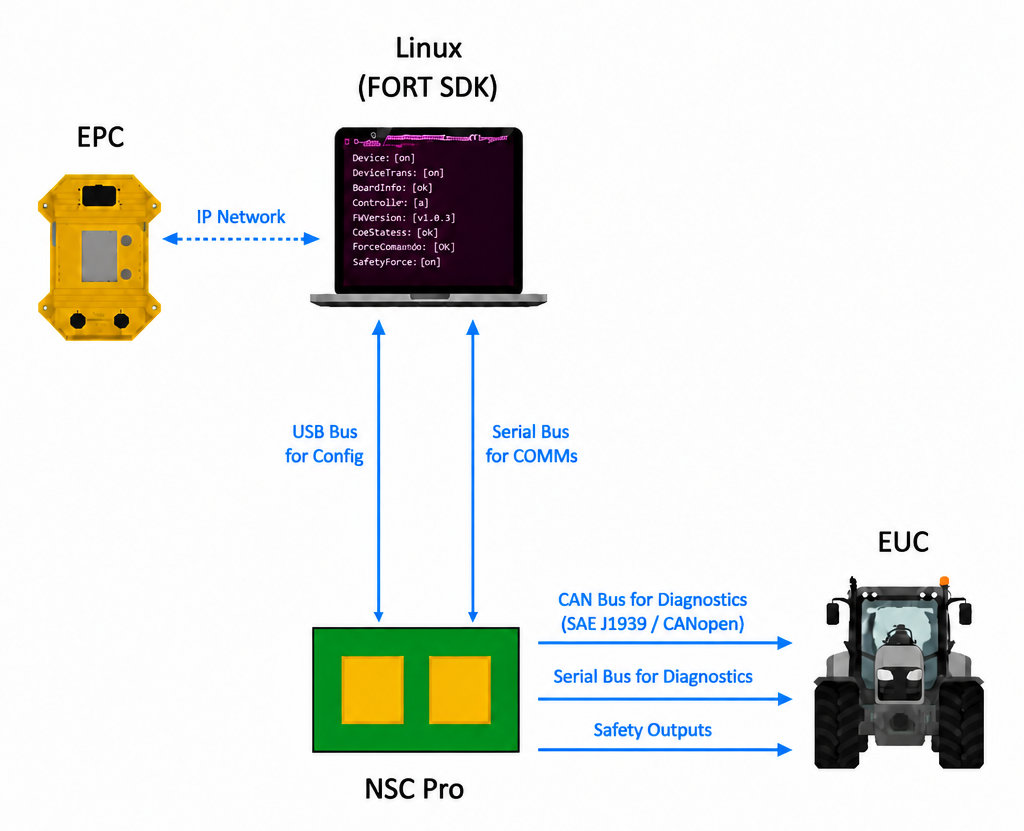
The NSC Pro does not come with a Wi-Fi modem or wired Ethernet adapter. To support using Wi-Fi or Ethernet from a FORT sending device, such as an EPC, we supply the FORT SDK, an IP to UART bridge that converts the IP traffic/stream from the sending device to serial traffic that can be read by the NSC Pro. Each machine on which you’ve embedded an NSC Pro requires that you supply a Linux computer with the Ubuntu OS running the FORT SDK, networked to the sending device via Ethernet or Wi-Fi, and connected to the NSC Pro via Serial and USB.
The following figure illustrates the communication between the EPC and the NSC Pro (through the IP to UART bridge on the Linux computer) as well as the connections between the NSC Pro and the EUC.
Install and Run the FORT SDK
This section provides procedures for downloading, installing, and running the FORT SDK Pro on your Linux machine.
Required Items
-
Linux computer running Ubuntu with Ethernet networking capability (required for using the CLI Configuration Tool and the SDK)
-
FORT CLI Configuration Tool,
fort_cli_cfg(find latest version on Firmware tab of FORT Manager). -
FORT SDK Tool,
fort-agent-pro(find latest version on Firmware tab of FORT Manager).
To Download and Install the FORT SDK
(Requires FORT Manager DeviceManager or Admin role.)
-
Launch FORT Manager and enter your username and password when prompted.
-
Click Firmware in the left navigation pane.
-
Click Download FORT SDK.
FORT Manager downloads a Debian package:
fort-sdk_<version>_amd64.debto the Downloads folder on your computer.
-
In a terminal on the Linux machine, use
aptto install the local version of the FORT SDK from the directory in which you saved it to the Linux host machine:
aptinstall./fort-sdk_<version>_amd64.deb
-
Add yourself to the
dialoutuser group so you won’t needsudopermission when using the fort-sdk tool to access the serial device:
sudo usermod -a -G dialout $USER
-
Restart the terminal.
-
To verify that the tool has been successfully installed and that you can run it, type the following command in a terminal window:
fort-agent-pro--version
If you see the current version displayed, the tool is ready to use.
Set the IP address of the Linux machine to that of the NSC Pro in the FORT Manager configuration.
To Run the FORT SDK Tool
-
In a terminal on the Linux host machine, navigate to the directory in which you installed the application.
-
Launch the tool with the following parameters:
fort-agent-pro-s<safety_serial_path>-c<config_serial_path>The paths will appear as shown in the following example if the NSC Pro is connected to the Linux computer:
fort-agent-pro-s/dev/serial/by-id/usb-FTDI_Dual_RS232-HS-if01-port0-c/dev/serial/by-id/usb-FORT_Robotics__Inc._NSC_Pro_NOTSET-if00To ensure that the FORT SDK is always running on the Linux computer, you can implement it as a service that launches whenever the Linux machine restarts; see Implement FORT SDK as a Service.
Wiring an NSC Pro for IP Networking
For all of the following wiring procedures, refer to NSC PRO 80-Pin I/O Connector Pinout, which lists each of the NSC Pro’s connector signals. In addition, refer to Fig. 21 NSC Pro Communications for a visual representation of the relationships between the EPC, Linux computer (FORT SDK host), NSC Pro, and the EUC.
Electrostatic Discharge (ESD) Handling
The NSC Pro can be damaged by electrostatic discharge (ESD). To reduce the risk of ESD damage while installing an NSC Pro, take the following precautions:
-
Wear a grounded ESD wrist strap when handling the device.
-
Work on an ESD-safe mat or grounded surface.
-
Avoid touching exposed connector pins or internal circuitry.
-
Maintain ambient humidity above 30% when possible.
-
Discharge static by touching grounded metal before handling the device.
-
Store the controller in anti-static packaging when not installed.
Required Items
Before you begin, have on hand:
-
A Linux computer running Ubuntu and the FORT SDK, or on which you will install and run the SDK.
-
A TE 5-5179180-3 80-pin receptacle connector that you mate with the TE 5177986-3 80-pin connector plug on the secondary side of the board to wire the NSC Pro to the EUC, a power source, the Linux computer, etc (see figure).
-
An integration cable.
-
The relays to attach to the EUC. See NSC Pro Recommended Relays.
The type of sender in your configuration and whether you specify CAT0 or CAT1 determine which outputs you can wire on the NSC Pro receiver:
-
For CAT0 (Immediate Stop) configurations:
-
For an EPC sender, you may wire Output 1 only, or wire both Output 1 and Output 2. You cannot wire only Output 2, because Output 1 is the primary safety output.
-
For an SRC Pro sender, you must wire Output 2 only.
-
For a WES Pro sender, you must wire Output 1 only.
-
-
For CAT1 (Controlled Stop) configurations with any type of sender, the NSC Pro uses two independent safety outputs to support a controlled stop followed by power removal. Therefore you must wire both NSC Pro outputs, as follows:
-
Output 1 always performs the immediate shutdown portion of the stop.
-
Output 2 always performs the phased (delayed) shutdown portion of the stop.
This allows you to remove power immediately from one part of the EUC (via Output 1) while allowing another part (via Output 2) to complete a controlled stop before power is removed.
-
Be sure that the wiring matches the configuration selected in FORT Manager, including whether the system is set for CAT0 or CAT1 behavior.
To Wire the NSC Pro to the Host Computer and to the EUC:
-
Attach the TE 5-5179180-3 80-pin receptacle connector to the TE 5177986-3 80-pin connector plug on the secondary side of the board.
-
- Connect the NSC Pro to the host computer:
-
-
Connect the USB port on the NSC Pro (using pins 2 and 4 for data & pin 6 for power) to a USB port on the host computer.
The USB connection enables you to configure the NSC Pro. Note that without power (from pin 6) the NSC Pro will not detect the USB connection.
-
Connect serial port
Serial0on the NSC Pro (IP to UART bridge, pins 50 & 54) orSerial1(IP to UART bridge, pins 58 & 62) to a serial port on the host computer.This connection enables the FORT SDK, running on the host computer, to convert IP traffic from the sending device to serial traffic that can be read by the NSC Pro.
-
-
Connect pins 10 & 12 (PVIN) to the main power supply on the EUC. 2
-
Connect grounding pins, 8, 23, 46, 69, and 79 together at the same place (common power supply in the likely case that earth ground is not available).
See Grounding an NSC Pro for details.
-
If you are using CAN, connect the CAN bus from the NSC Pro to the EUC (CAN0, pins 24 and 26, ).
Using the CAN bus is optional and if you are using the serial connection for the data output interface between the NSC Pro and the EUC, you can’t use CAN.
Important:Termination resistors are important for reliable CAN bus communication. The NSC Pro integration cable does not come with any termination inside the cable. You may need a 120 ohm termination resistor if one isn’t already present in the CAN network.
-
If you are using a serial bus for diagnostics, connect the other serial port on the NSC Pro (whichever one is not connected to the SDK on the Linux computer) to the EUC (UART 0, pins 50 & 54, or UART1, pins 58 & 62).
Using the serial port is optional, and if you are using CAN, you can’t use the serial port to connect to the EUC.
-
For Output 1, connect pin 55 (Channel 0 Output 1) and pin 57 (Channel 1, Output 1) to the safety relay.
-
For Output 2 (if using), connect pin 78 (Channel 0, Output 2) and pin 80 (Channel 0, Output 2) to the safety relay.
-
- Optionally, to wire external LEDs to show the power, connection, and operational status of the NSC Pro:
-
-
Wire pins 5, 7, & 9.
-
Connect pin 18 to pull 3.3 V output (max current 50mA) from the onboard power supply to power the LEDs.
-
-
- Optionally, to provide a backup battery (3-3.3 V DC), for example to keep a clock running:
-
-
Wire pin 48.
-
Use Pin 46 to ground the battery to the same ground as the main power supply.
If you aren’t providing a battery, tie pin 48 to pin 18 (P3V3_OUT).
-
Each output on the NSC is designed with short circuit protection circuitry inside the NSC device. However, drawing more than 750 mA must be avoided since it won’t activate short circuit protection and could potentially damage the device. To satisfy applicable wiring codes and conditions, you are responsible for protection of field devices and wiring through appropriate fusing of the circuitry (see Recommended Relays for details about fuse size and diodes to use).
Grounding an NSC Pro
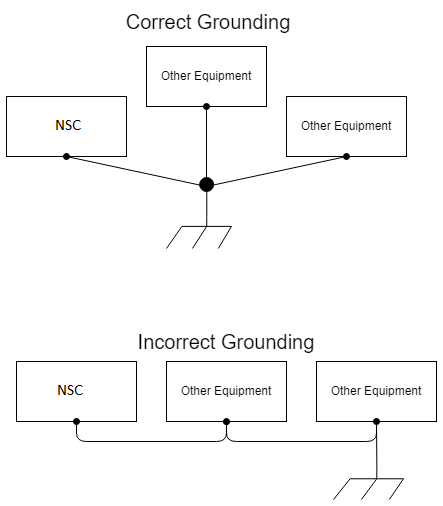
Connect all ground (GND) pins together and to power supply common if an earth ground is not available (such as in a moving vehicle).
Be certain that there is only one path for return current between the host and receiving nodes. Otherwise, if a network is grounded in more than one location, parasitic current will flow. By grounding a network only at the source, you avoid potentially hazardous ground loops. We recommend using digital isolators such as the ISO721 (SLLS629) if you must connect the grounds of different sources. Be certain that unused pins in connectors as well as unused wires in cables are single point grounded at the connector. Ground unused wires at alternate ends to nearby ground pins.
In addition, if you require a pull down resistor in order to make the output signal go to ground when an E-Stop is triggered, we recommend using a 1.6k ohm resistor to pull the output pins (55 and 57, and 78 and 80 if used) to ground.
The following diagram shows examples of both correct and incorrect grounding:
Engine Cranking (NSC Pro)
If you attach the NSC Pro to an ignition circuit, be aware that engine cranking can drop the voltage below 4.5 V causing the NSC Pro to turn off the outputs and triggering a safe state. In addition, cranking may drop the voltage low enough that the NSC Pro temporarily stops functioning and resets.
You should assess whether this behavior is a safety issue for your application. It may not be. For example, if the NSC Pro doesn’t power up until after the equipment is running, cranking the engine shouldn’t affect the NSC Pro.
On the other hand, you can avoid this problem altogether by making certain that the NSC Pro is not part of an ignition circuit.
Embedding an NSC Pro
When embedding the Nano Safety Controller Pro in your equipment, keep in mind the clearances shown in the following table:
Table 4 NSC Pro Board Clearances
| Board | Dimension |
|---|---|
| Primary side of board clearance | 4 mm |
| Secondary side of board clearance | 5 mm |
| Secondary side of board standoff | 9 mm |
| Primary side of board with ISM clearance | 20.1 mm |
See Mechanical Drawings NSC Pro and ISM Radio for NSC Pro and ISM measurements.
Environmental Considerations
Be certain that you install the NSC Pro in a location that prevents:
-
Exposure to condensing or splashing water.
-
Temperatures beyond rated operating and storage ranges (see Specifications).
-
Dust, pollution and other particle contaminants (IEC 60950-1 pollution degree 2).
-
Electrostatic discharge.
You should validate through testing that the installation method is appropriate for the application.
Selecting and Placing an Antenna
FORT offers a variety of antenna options to support the wireless communication method you will be using. The antennas for the Nano Safety Controller Pro are accessories that you need to select prior to purchase.The antennas for the Safe Remote Control Pro are built into the device so you must select one prior to purchase.
You cannot use your own antenna; you must use one of the antennas available from FORT.
Choose an antenna based on the wireless communication type you plan to use as shown in the following table (Usage row):
| FORT Device | SRC Pro to NSC Pro via ISM 868 | SRC Pro to NSC Pro via ISM 900 | EPC to NSC Pro via Wi-Fi or Ethernet | EPC to NSC Pro via ISM 900 |
|---|---|---|---|---|
| Antenna Type | Whip Straight | Whip Straight | Provided via equipment (EUC) | Whip Straight |
| Usage | ISM EU Bands | ISM NA Bands | Wi-Fi; Ethernet | ISM NA Bands |
| Frequency Range | 750–950MHz | 865-965MHz | 2.4 - 2.5GHz (5.1 to 5.9GHz pending tests) | 865-965MHz |
| Peak Gain | 1.1 dBi | 1.8 dBi | 4.5dBi @ 5.1-5.9Ghz band and 7.2dBi in the 2.4 to 2.5Ghz band | 1.8 dBi |
| Ideal Placement | Elevated; pointed straight up; clear LOS | Elevated; pointed straight up; clear LOS | Elevated; pointed straight up; clear LOS | Elevated; pointed straight up; clear LOS |
Use grommets when routing the antenna cable through enclosures.
If your device has an ISM radio, you must attach an antenna. Operating an ISM radio without an antenna installed could damage the unit.
Ideally, you should place the antenna such that is has a clear line of sight (LOS), it’s not too high or too low, no metal is between it and the sender, and it’s pointed straight up (whip antenna), or pointed towards other devices (puck antenna)
The following table shows rules for using approved antennas in the USA, Canada, and Europe:
| Device | FCC ID (US ) | IC (Canada) | CE (Europe) |
|---|---|---|---|
| NSC Pro EPC SRC Pro | CFR title 47; part 15; subpart C; section 15.247 | RSS-247 Issue 2; RSS-Gen Issue 5 | EN 301 489-1 & -3; EN 300 220; RED 2014/53/EU |