Using an SRC Pro
This chapter describes the Safe Remote Control Pro's joysticks, buttons, and operating modes, explains how to connect it to an Endpoint Controller and move it to a different one, and lists the alerts and error messages it displays.
This chapter describes the features of the Safe Remote Control Pro in more detail, explains how to connect a Safe Remote Control Pro to an Endpoint Controller, and explains the modes in which it connects to an Endpoint Controller.
Operating Your Equipment Safely with SRC Pro
This chapter has warnings and cautions throughout for how to use the SRC Pro safely in specific situations, such as when charging it or turning it off and on. Keep the following warnings in mind as well:
Do not use the E-STOP button to pick up, hold, or carry the SRC Pro. Doing so may damage the E-STOP button and create an unsafe operating scenario.
If the E-STOP button breaks, gets damaged, stuck, or is hard to operate, immediately press the power button to turn the device off and contact FORT’s customer support.
Do not turn the device back on again until you have been asked by FORT’s customer support to do so.
The following figure highlights the Safe Remote Control Pro Features:
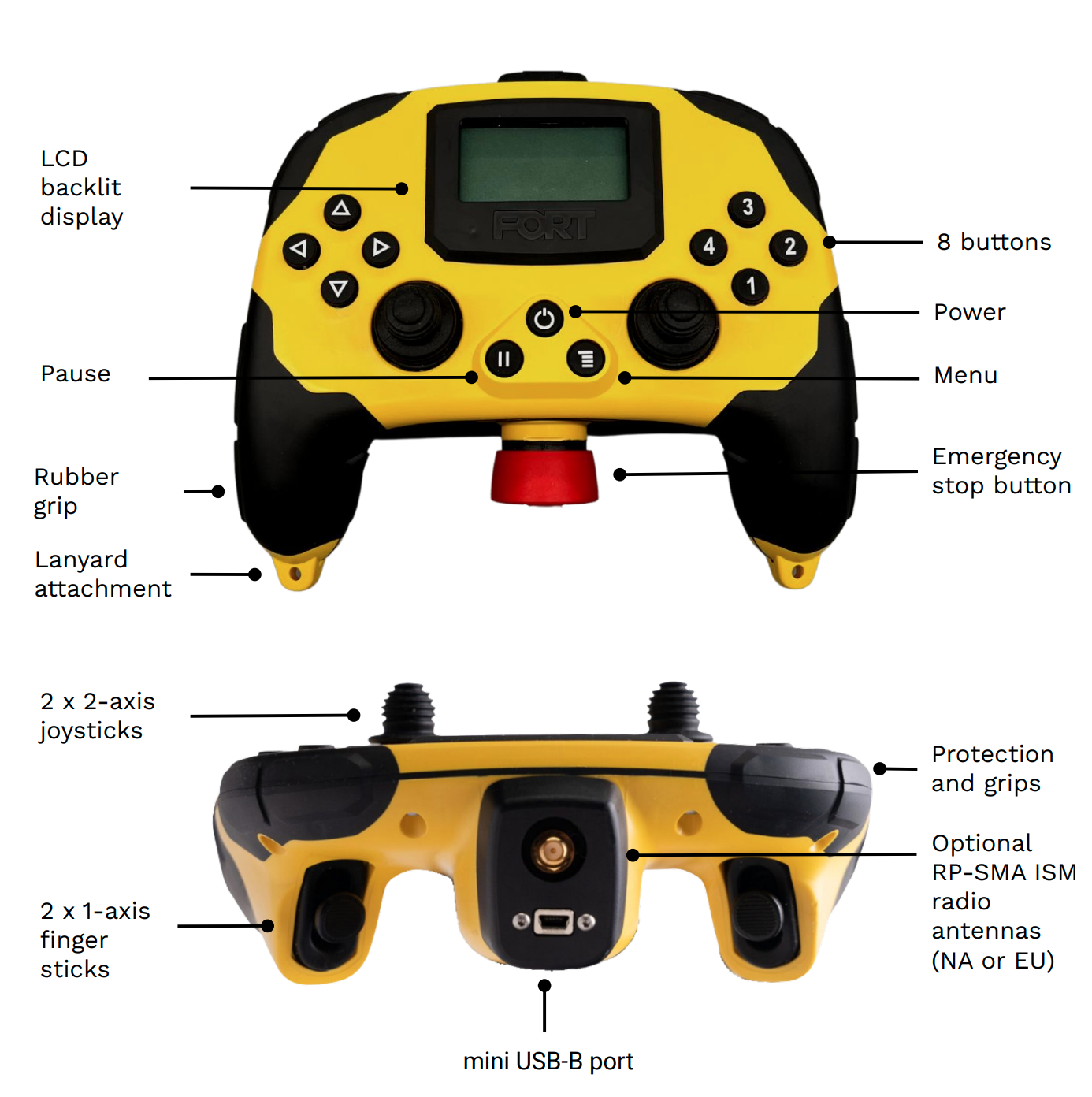
Avoid operating an SRC Pro near magnets. The SRC Pro relies on Hall Effect joysticks, which use magnetic fields and non-contact sensors to detect movement. Exposure to external magnets can interfere with these sensors, potentially causing erratic joystick behavior or inaccurate control responses.
Joysticks
The Safe Remote Control Pro is a 6-axis controller with three on each hand. The X axis and Y axis are mapped to the thumb stick on top of the Safe Remote Control Pro, while the Z axis is mapped to the finger stick underneath.
Buttons
The buttons on the Safe Remote Control Pro are configured in a diamond; those on the left hand side are: Up, Down, Left, and Right. Those on the right are numbered 1 through 4.
Power Button
Push the power button to turn the SRC Pro on or off. When you turn it on, the LCD screen lights up when it is ready to use. Inserting the charging cable into the mini USB port also turns the SRC Pro on if it is connected to a power supply.
When you push the power button to turn it off, if the SRC Pro is connected to a receiver, it stops sending valid safety messages, which:
-
Causes the connected device to go to the safe state after the timeout period is exceeded if the device is in supervised mode.
-
Allows the machine to run autonomously if the device is in unsupervised mode.
To reboot the device, push and hold the power button (for 8 seconds or more) and release it when the screen flashes.
Pause Button
Press the Pause button (two vertical lines) to enter Pause Mode, and press it again to exit Pause Mode. See Pause Mode for details.
This section explains the different modes for the Safe Remote Control Pro. See Changing the Mode of the EPC for information about supervised and unsupervised modes which apply to a connected EPC.
In Pause Mode, the Safe Remote Control Pro continues to send valid safety messages to the connected Endpoint Controller (if any) keeping the relays closed and the Endpoint Controller operating normally (not requesting safety). The Safe Remote Control Pro also continues to output the joystick message but with all values set to 0 to guarantee that no motion will occur.
The Safe Remote Control Pro enters pause node for any of the following reasons:
-
The Safe Remote Control Pro user presses the pause button.
-
The remote detects that it has been dropped (is free falling).
-
The remote detects an orientation fault (such as the remote has moved to the user’s side or has been turned on its face).
-
The remote detects lack of motion for the timeout period (user configurable in one minute increments from 2 - 10).
Once you have loaded the configuration onto the Safe Remote Control Pro and EPC, you can connect the SRC Pro to any EPC in the configuration — this feature is called: Machine Select.
Before You Begin
Make certain that:
-
Both devices are powered up and in range of each other.
-
You understand how Machine Select works and the difference between supervised and unsupervised modes (Machine Select Configuration).
Briefly, supervised means that the SRC Pro is sending joystick movements and safety data to the machine, whereas unsupervised means that the machine is operating independently with its own safety mechanism, and with no communication with the SRC Pro. When you first connect to an EPC, the mode is always supervised. You can change the mode at any time after connecting (Changing the Mode of the EPC).
To Connect an SRC Pro to an EPC:
This procedure applies to both connecting to an EPC for the first time and connecting to a different EPC when already connected to an EPC.
-
Power up both devices and keep them within range of each other.
-
As a safety precaution, press the E-Stop button.
(When you finish connecting to the new device, the E-Stop signal guarantees that the equipment won’t start operating unexpectedly.)
The SRC Pro displays a warning screen indicating that the E-Stop button has been pressed.
-
Press the Menu button to exit the E-Stop activated screen.
-
On the SRC Pro LCD screen, use the arrow keys to navigate to the Machine tab.
The screen shows a list of devices that you added to the configuration in FORT Manager.
-
Use the arrow keys to highlight a machine and press 1 to select it.
The screen displays a confirmation code.
-
Press the number buttons to enter the code to confirm the selection.
If you change your mind, you can press the Menu button to quit and return to the selection menu.
Note that pressing an incorrect number sequence also returns you to the selection menu.
-
Wait for the connection to be established and when confirmed, press 1 to close the window.
At this point, the SRC Pro has transitioned to supervised mode. If the connection attempt fails, you can repeat the connection process.
-
When it is safe to do so, release the E-Stop button.
You can now use the Safe Remote Control Pro to control the movements of the EUC and if necessary, press the E-Stop button to send a safety signal to it.
If the connection with a receiver is lost, the bottom row of the SRC Pro
display window shows: RadioDisconnected.
Connecting an SRC Pro to a different EPC
You can change the device that an SRC Pro is connected to at any time.
There is no procedure to disconnect the SRC Pro from an EPC to which it is connected. The SRC Pro can be connected to only one EPC at a time, so connecting to a new EPC effectively disconnects from the old device. To connect to a new device, follow the connection procedure in the previous section.
Although you cannot explicitly deselect a connected device, in a one-to-one configuration, powering off the connected device is functionally equivalent to deselecting it.
Note the following about the previously connected device:
-
If the previous machine was in unsupervised mode, the equipment under control will remain powered up and running.
-
If the previous machine was in supervised mode, it no longer receives a safety message from the SRC Pro and will go to safe state once the timeout value is reached.
Changing the Mode of the EPC
Whenever you connect a Safe Remote Control Pro to an EPC, the SRC Pro sets the mode of the EPC to supervised. At any time after connecting to an EPC in supervised mode you can change its mode to unsupervised if the machine has autonomous capability and has been wired appropriately.
In unsupervised mode, the SRC Pro and the EPC are not communicating with each other, so the SRC Pro is not sending safety or control information to the EPC. Rather, the EPC that is attached to the equipment is responsible for monitoring the customer supplied safety signal, and if that signal changes out of the normal state, the EPC enters the safe state and breaks the circuit to the equipment under control. For wiring details, see Wiring Receivers with an SRC Pro Sender.
Make certain that you are aware of the following points about operating equipment in unsupervised mode:
-
Pushing the E-Stop button on the SRC Pro has no effect because the EPC ignores an E-Stop command when in unsupervised mode.
-
Be certain that the equipment is able to operate safely without need of the E-Stop button, as pushing it will have no effect and it may not be quick or easy to change the mode of the EPC back to supervised for a number of reasons, including the following:
-
The equipment with the EPC is out of range of the SRC Pro.
-
The SRC Pro has run out of battery.
-
The SRC Pro is damaged or unresponsive.
-
To Change the Mode:
Make certain that:
-
Both devices are powered up and in range of each other.
-
The SRC Pro is connected to the EPC.
If you are changing the mode from supervised to unsupervised, be certain that the EPC is connected to a machine with autonomous capability and that it has been wired appropriately for unsupervised mode. If the machine does not have autonomous capability, and has not been wired appropriately, the EPC will transition to safe state when you change the mode to unsupervised.
See Wiring an EPC to use with Machines With Autonomous Capability for details.
-
On the SRC Pro LCD screen, navigate to the Machine tab.
-
Use the arrow keys to highlight the machine to which the SRC Pro is currently connected and press 1 to select it.
The screen displays a confirmation code and a prompt to change to Autonomous or Supervised (opposite of the current mode).
-
Press the number buttons to enter the code to confirm the selection.
If you change your mind, you can press the Menu button to quit and return to the selection menu. Note that pressing an incorrect number sequence also returns you to the selection menu.
-
Wait for the connection to be established and when confirmed, press 1 to close the window.
-
After the mode change is successful, press the Menu button to close the prompt.
The screen displays the new mode. For example, if you began in supervised mode, the screen should show: AUTO for unsupervised mode.
Viewing the Connection Status
At any given time, an SRC Pro can only be connected to one machine in supervised mode (indicated by SUPR after the machine name on the LCD display) The SRC Pro can also set the mode of multiple machines to unsupervised (indicated by AUTO next to the machine name on the LCD display)
To see the mode of all machines in the configuration, press the Menu button, then navigate to the Machine tab of the SRC Pro LCD screen:
-
AUTO unsupervised mode
-
SUPR supervised mode
-
<blank> unknown (or no mode)
Turning the SRC Pro Off and Back On
When you turn an SRC Pro off, machines that were in unsupervised mode will continue to operate in unsupervised mode. If the SRC Pro was connected to a machine in supervised mode, that machine will experience a timeout and transition to safe state.
After you turn the SRC Pro back on, machines that were in unsupervised mode will continue to operate in unsupervised mode, but the display will show these machines as blank. If the SRC Pro was connected to a machine in supervised mode, it will no longer have a connection unless you reestablish one. The display mode for that machine will be blank until you reconnect.
An SRC Pro does not remember the displayed mode after it is turned off and then turned back on. Therefore, the displayed mode for all machines is blank after power cycling the SRC Pro.
Turning the EPC Off and Back On
When a receiver EPC is turned off, the relays will open and put the machine in a safe state, but the displayed mode (on the SRC Pro) associated with the machine will remain as before.
When the EPC is turned back on, the relays will remain open and keep the machine in a safe state until you use the SRC Pro to connect to the EPC and change its mode to supervised or unsupervised. The displayed mode on the SRC Pro for the machine will continue to be the same as it was before the EPC was power cycled.
The displayed mode on the SRC Pro only indicates the mode that the user set the EPC to. It does not reflect the actual state of the EPC. For example: you set the mode of the EPC on Machine-1 to unsupervised and then use the SRC Pro to connect to Machine-2. Later, Machine-1 moves out of range of the SRC Pro, or it is turned off, but since the SRC Pro doesn’t have communication with that EPC, it continues to show the mode as unsupervised (indicated by AUTO).
Alerts and Error Messages
This section lists some SRC Pro error messages and how to resolve them.
-
Joystick Jammed — Indicates a button was pressed during power on.
-
To resolve, power cycle the SRC Pro (Press and hold the power button for 8 or more seconds and release it when the screen flashes).
-
-
Keypad Jammed — Indicates that a keypad button was pressed when the SRC Pro was powering on.
-
To resolve, power cycle the SRC Pro (Press and hold the power button for 8 or more seconds and release it when the screen flashes).
-
-
Radio Off — Indicates that the SRC Pro radio is not broadcasting because it is not connected to a receiver.
-
No action is required. As soon as you initiate pairing between the SRC Pro and a receiver, the radio turns on and begins transmitting.
-
If the SRC Pro shows an error that is not listed here, or behaves in a way this guide does not explain, retrieve its logs before you contact support. For more information, see Using Logs.