Introduction
This chapter introduces the Pro Series devices and FORT Manager, explains how a wireless safety signal moves your equipment between its normal state and its safe state, and outlines the plan, wire, and configure sequence you follow to set a system up.
This document shows how to integrate the FORT Pro Series devices with your smart machines to enable secure transmission of wireless safety and control commands. FORT helps protect people and organizations from injury, damage, and downtime with trusted control & communication for any machine. With built in functional safety and security, FORT’s Pro Series delivers machine control and communication you can trust.
The Pro Series includes:
-
Endpoint Controller (EPC) — A mountable sender and receiver that can execute trusted commands over Bluetooth low energy, Long-Range Bluetooth, Wi-Fi, Ethernet, and ISM Radio. It can be used as a sender, to send safety signals to other FORT devices, such as NSC Pros or other Endpoint Controllers, or as a receiver, wired into a machine for control and safety functions sent by another FORT device. Which radios are available depends on the model; see Device Models and Communication Methods. For more information on the EPC, see EPC Technical Specifications.
-
Safe Remote Control Pro (SRC Pro) —Used as a sender to wirelessly connect to an EPC or NSCP, it provides both wireless E-Stop and remote operator control of a machine at a safe distance. Which radios are available depends on the model ; see Device Models and Communication Methods. For more information on the SRCP, see SRC Pro Technical Specifications. For more information on which models FORT Manager supports, see SRC Pro Models and Support Status.
-
Wireless E-Stop Pro (WES Pro) A handheld sender that sends a wireless E-Stop command to connected machines 1 with the push of a button. See WES Pro Technical Specifications for detailed technical specifications.
-
Nano Safety Controller Pro (NSC Pro) — An embedded board with a small form factor, used as a receiver, that allows OEM developers to build emergency stop (E-Stop) functionality directly into their machines without requiring bolt-on hardware. The NSC Pro controls a machine (known as the EUC, or equipment under control) by receiving safety signals from a mobile or stationary sender with which it is paired.
FORT Manager — A cloud-based platform that provides device registration, configuration, management and updates, and management of users. Managing users means that FORT Manager holds account information for the people in your organization. For more information, see Personal Data in FORT Manager. You can reach FORT Manager three ways:
-
The FORT Manager Web App, which provides a UI for building configurations. The web app presents six pages in the left navigation pane — Dashboard, Devices, Configurations, Firmware, Users, and Organization. For more information, see What You See in FORT Manager.
The FORT Manager Desktop App, which you download from the web app. It provides additional functionality not found in the web app, including the ability to load configurations and firmware without an internet connection.
The FORT API, which provides programmatic access to configuration management. For more information, see FORT Manager API Reference Guide.
-
This guide is intended for OEM developers who want to build safety solutions into their machines as well as integrators and end users of those machines.
Unless otherwise noted, the features described in this document are available as of the date of the latest revision.
Overview
The primary function of the system is the ability to wirelessly send a safety signal from a remote device sender to one or more receivers that are wired to pieces of equipment (henceforth known as the EUC, or equipment under control). Additionally, a Safe Remote Control Pro provides the ability to remotely control and maneuver the EUC.
There are various ways to configure the system, using FORT Manager, depending on your specific situation, but at a basic level, every configuration has:
-
A network that allows devices to communicate.
-
A receiver wired to each EUC.
-
A remote controller (an EPC, SRC Pro, or WES Pro) that communicates wirelessly with the receivers attached to the EUCs to send safety signals, and in the case of the SRC Pro, safety and control signals.
The following figure illustrates a basic configuration with an EPC sender and three EPC receivers:
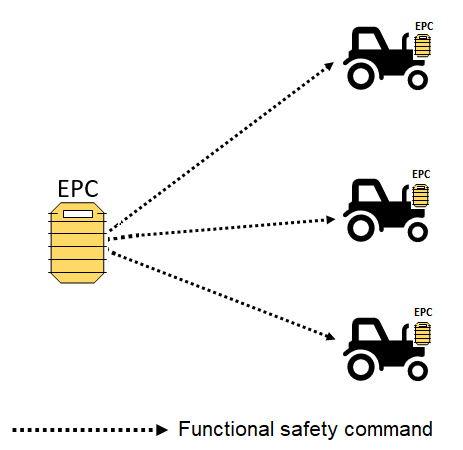
The basic operational philosophy of the system is that it allows the EUC to move between the safe state and the normal state. The safe state causes the equipment under control (EUC) to cease whatever dangerous function it is performing. Depending on the equipment and how you wired and configured it, this could mean shutting down the machine entirely, slowing it down, turning off a specific function such as a robotic arm, or something else entirely. Depending on the configuration, any of the following situations trigger the safe state:
-
An equipment operator perceives that the EUC has encountered a major problem that requires it to be stopped immediately and presses the E-Stop button to do so.
-
A solid state safety device (such as a programmable logic controller (PLC), or light curtain) that is wired to a receiver is monitoring an area and a worker opens a guard or reaches into a hazardous area, which causes the receiver to initiate the safe state.
-
The system detects an automatic diagnostic fault and initiates the safe state.
The normal state means that an E-Stop command has not been requested, no diagnostic faults are detected, and the EUC is powered.
The following steps walk you through setting up your Pro Series devices—from initial planning to final system testing—to ensure safe and reliable communication between components and safe operation of your equipment.
Although we show Plan as the first step, this manual assumes you’ve already determined how many devices you need and have purchased them. Similarly, while Wire appears before Configure, the order is flexible—teams may wire and configure in parallel.
That said, wiring and configuration are interdependent. For example, if you assign an E-Stop Switch to EPC Input 1, you must wire an E-Stop Switch—not a light curtain—to that input. You don’t need to follow a strict sequence, but when you’re ready to test the system, wiring and configuration must align.
-
Plan — Determine the type of configuration to build. Configurations and Use Cases provides an overview to the types of configurations that we support and the use case for each one. In addition, be certain to involve a safety expert in the planning process to develop a safety plan for integrating the FORT Pro Series devices with your equipment.
-
Wire — Wire the inputs and outputs (Wire and Mount Endpoint Controller
-
If the transmitter device (sender) is an EPC, wire the inputs to an E-Stop type device or to a Solid State Safety Device (SSD); see Wiring EPC Sender.
-
If the transmitter is an SRC Pro or WES Pro, no wiring is necessary because the E-Stop is built into it.
-
Wire the EPC output(s) to the EUC; see Wiring EPC Receivers.
-
-
Configure — Build a logical configuration using the FORT Manager Web App, the FORT Manager Desktop App, or the FORT API .
If you haven’t done so already, you can follow the instructions in the Getting Started Guide to log in to FORT Manager, set up an account, and register your devices. You can also:
-
Set up your organization, manage user accounts, and assign roles. Adding someone to your organization stores their account information in FORT Manager. For more information, see Personal Data in FORT Manager.
-
Add devices to a configuration and set device and network parameters, including communication channels, timeout value, and types of inputs.
-
View current configurations and device utilization.
-
View support tickets.
-
Update firmware as necessary.
Note:If you are having any problems with the FORT Manager Web App, such as launching or logging in, or you don’t have the serial number for your devices, email a request to support@fortrobotics.com to get help.
-
-
Load —Load a configuration onto each device (Loading a Configuration onto Your Devices).
-
Test — Verify that the system performs as expected before deploying it. For example, pressing an E-Stop button stops the EUC, walking in front of a light curtain slows or stops the EUC, and so on. Be certain that a safety expert verifies that the system is operating in accordance with your safety plan.
Safe operation of the system requires that you thoroughly test the system before putting it into a production environment. Testing includes training your personnel on both the manual functions (pressing an E-Stop button, using an SRC Pro to maneuver an EUC, etc.) and automatic functions of the system (solid state devices triggering safety, exceeding the timeout value, loss of radio signal, etc.).
FORT Manager enables you to build secure and functionally safe device configurations, through the web app, the desktop app, or the FORT API. Additionally, FORT Manager enables you (or someone in your organization) to perform the following tasks:
- Set up your organization, manage user accounts, and assign roles.
- Add devices to a configuration and set device and network parameters, including communication channels, timeout value, and types of inputs.
- View current configurations and device utilization.
- View support tickets.
- Update firmware as necessary.
What You See in FORT Manager
FORT Manager does not offer every organization the same set of features. FORT enables features for particular organizations, so a control described in this guide may not be present in your FORT Manager, and a feature announced in the release notes may not be enabled for you yet.
This is separate from the other reasons a control may be absent. A control can also be missing because of the type of configuration you are building, the model of the device you selected, or the role your account holds. For more information, see Device Models and Communication Methods for what each device model supports.
If this guide describes a control that you cannot find, and neither your configuration type, your device model, nor your role explains it, the feature may not be enabled for your organization.
FORT Manager Dashboard Page
The Dashboard is the page FORT Manager opens on. It has four areas.
- Notifications Row
- A single collapsible row at the top of the page, with a badge showing the number of unread notifications. Expand it to read them and dismiss them individually. Firmware releases are not announced here; they appear in the firmware release table.
- Firmware Release Table
- The current published version for each device type, with a New badge against any version published since you last looked. For the full list and the downloads, go to the Firmware page.
- Stat Cards
- Counts of devices, configurations, and users in your organization. Each card also shows a sub-metric — for example the number of invitations still pending — and opens the matching page filtered to that subset.
- Device Utilization Chart
- How many of your registered devices belong to a configuration and how many are registered-only. A registered-only device is one FORT Manager knows about that belongs to no configuration. It cannot communicate with any other FORT device until it is added to one and that configuration is loaded onto it.
To raise a support request, click Submit Request on the Dashboard.
Device Status
FORT Manager reports two independent things about a device. They answer different questions.
| Where It Appears | Values | What It Tells You |
|---|---|---|
| Status column, Devices page | Online / Offline / Pending | Whether FORT Manager is currently in contact with the device. It says nothing about which configuration the device holds. |
| Configuration view, Configurations page | Ready to Deploy / Deployed | Whether the configuration you are looking at has been applied to that device. It says nothing about whether the device is reachable now. |
A device can be Online and still be running a configuration you have since changed. Neither badge is a substitute for reading the device itself. For more information, see Confirming Configurations After You Reconnect.
FORT Manager Screens
The FORT Manager web app presents six pages in the left navigation pane. Procedures in this guide refer to them by name.
- Dashboard
- The landing page: a notifications row, a firmware release table, stat cards for devices, configurations and users, and a device utilization chart. For more information, see The Dashboard Page.
- Devices
- Every device registered to your organization, with its model, registration date and status. Use it to find a serial number or a model number, to filter a fleet by model type, and to open a device's detail view.
- Configurations
- Where you build, review, deploy, and modify configurations. For more information, see Building a Configuration.
- Firmware
- The published firmware version for each device type, and the Downloads card for the Desktop App, the CLI Configuration Tool, and the FORT SDK. For more information, see The Firmware Page.
- Users
- The people in your organization and the role each one holds. For more information, see Personal Data in FORT Manager.
- Organization
- Your organization's details and its API keys. For more information, see API Key Expiry.
Opening a device from the Devices page shows its detail view, which has four tabs: Info, History, Logs, and Health.