Using a WES Pro
This chapter describes the WES Pro's E-Stop button, menu screen, and alerts, and explains how to charge it, replace its battery, connect it to a receiver, and store it safely between uses.
This chapter describes the features of the WES Pro and explains how to connect a WES Pro to a receiver.
This chapter has warnings and cautions throughout for how to use the WES Pro safely in specific situations, such as when charging it or turning it off and on. Keep the following warnings in mind as well:
Whenever approaching equipment for inspection or maintenance, press the E-Stop to be certain that the equipment is in a safe state and won’t start operating unexpectedly. In addition, power off the machine via its power source, and follow relevant lock-out-tag-out procedures, to minimize the risk of energy-related hazards during maintenance.
Once you disengage the E-Stop, the connected device will operate normally. Be certain that the connected machine is safe to operate before disengaging the E-Stop.
Do not use the E-STOP button to pick up, hold, or carry the WES Pro. Doing so may damage the E-STOP button and create an unsafe operating scenario.
If the E-STOP button breaks, is damaged, stuck, or hard to operate, immediately press the power button to turn the device off and contact FORT’s customer support.
Do not turn the device back on again until you have been asked by FORT’s customer support to do so.
Charging the WES Pro
The WES Pro is powered by a rechargeable battery and is shipped with a docking station and a power supply and cable for charging the device.
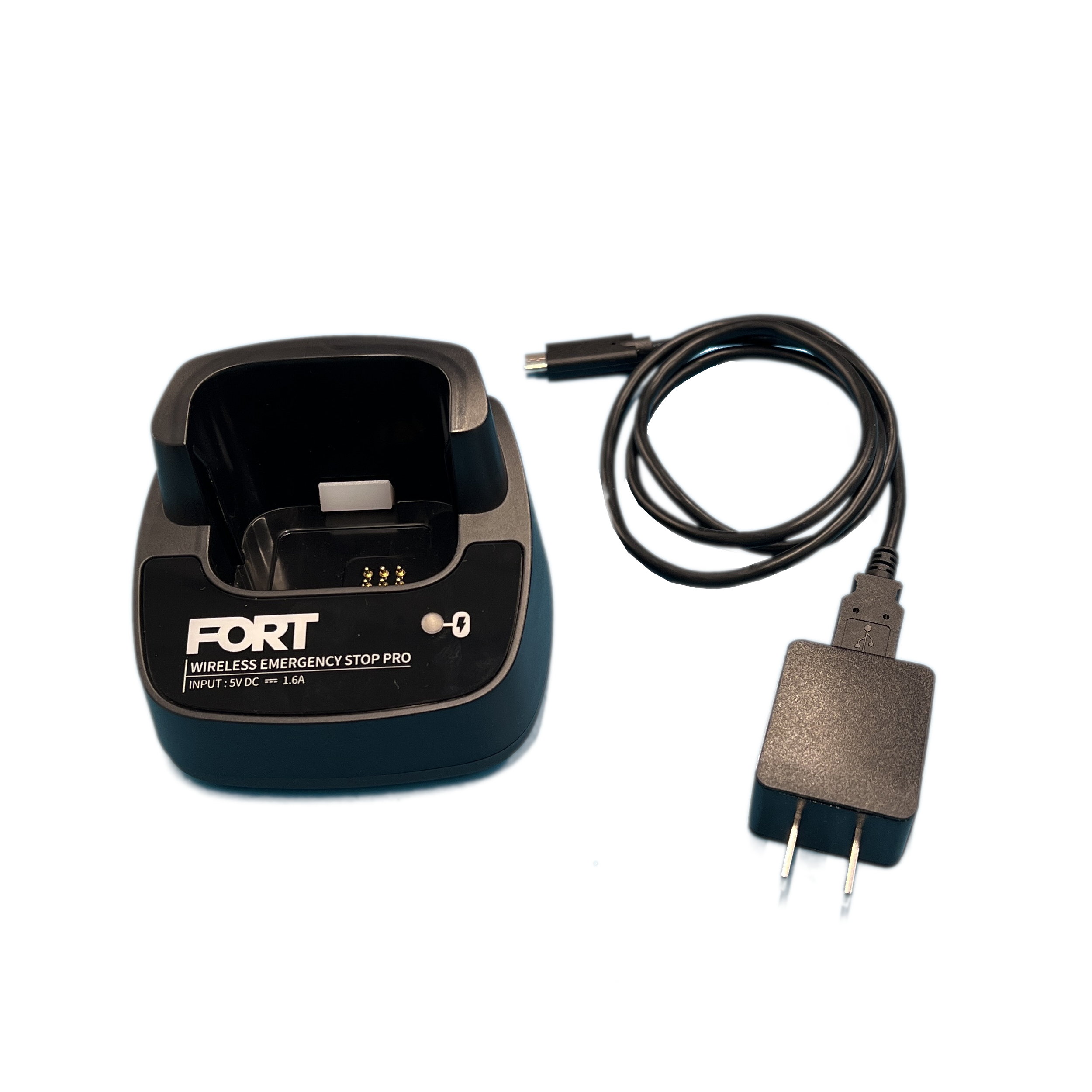
The WES Pro provides a haptic indicator (vibrates) when the battery charge drops to 10%, as well as a different vibration pattern if the device shuts off because of low battery.
To Charge the Device
Always charge the device where the dock is not exposed to dust or moisture. If the dock is wet, towel it off before charging the device.
-
Plug the power supply into an outlet.
-
Turn the docking station over and insert the USB-C connector into the port on the underside of the docking station:
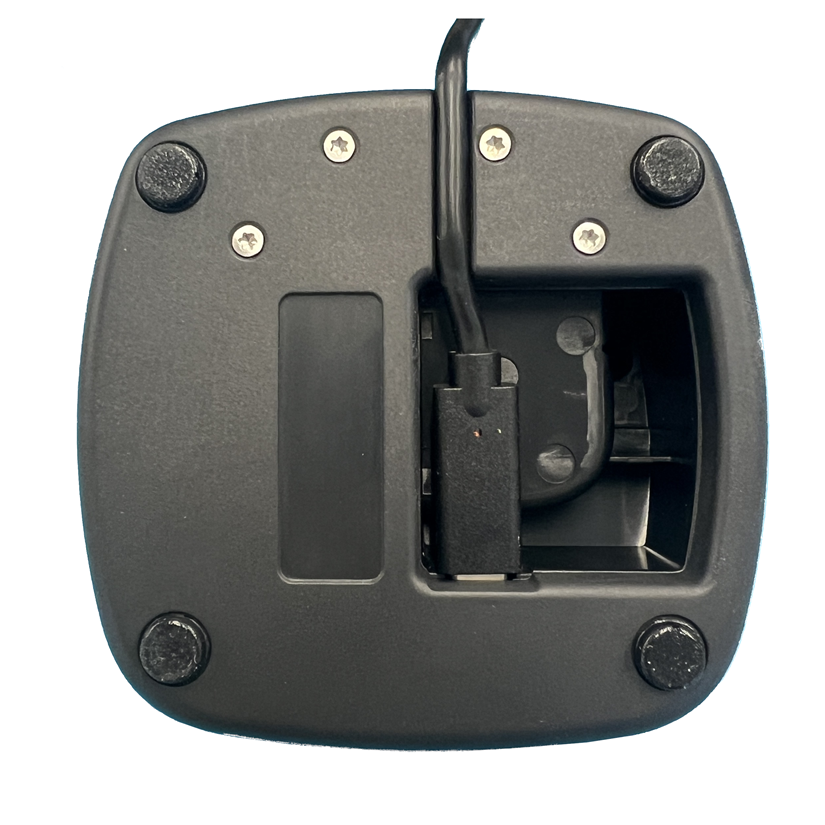
Figure 2. Fig. 30 Docking Station Underside -
As a precaution, press the E-Stop button on the WES Pro before inserting it into the dock.
-
Push the WES Pro into the docking station until it clicks in place.
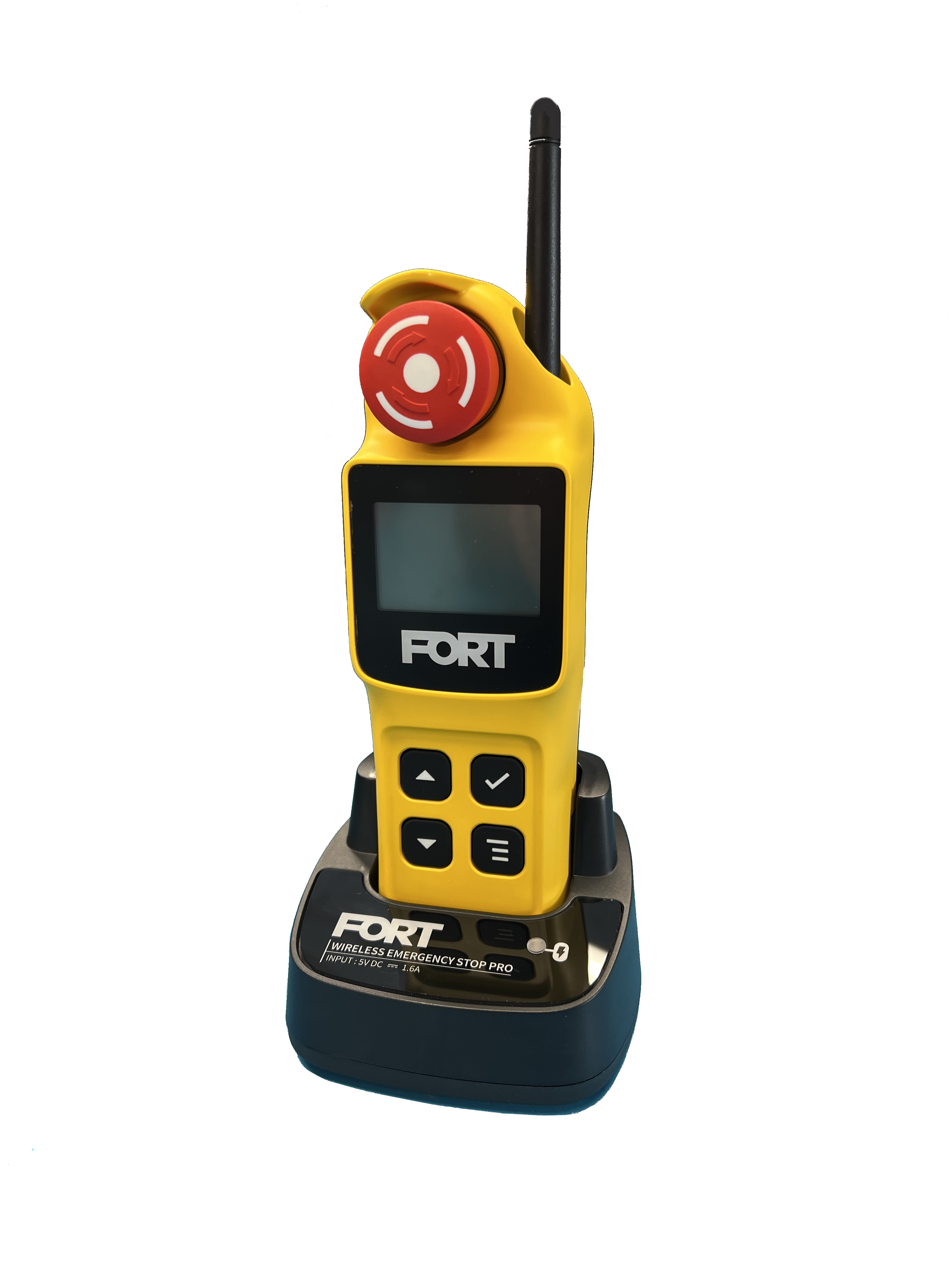
Figure 3. Fig. 31 WES Pro in Docking Station The WES Pro turns on (if off) and the indicator light on the docking station shows that it is charging. The LCD screen also shows the charge percentage for the battery.
-
Remove the WES Pro from the docking station when it’s sufficiently charged.
Note:When you place a WES Pro in the dock, it automatically powers on. To prevent it from reconnecting to a receiver, potentially triggering the equipment under control (EUC) to operate, the system keeps the receiver in a safe state until you explicitly disengage the E-Stop. If you haven’t pressed the E-Stop, the WES Pro displays a message: “Press the E-STOP to Enable WES Pro.” that remains on until you engage the E-Stop. To reconnect to a receiver, press the E-Stop, then disengage it. If the E-Stop is engaged, the message does not appear.
-
If you haven’t engaged the E-Stop, press it now and proceed to the next step (or if it’s engaged, just go to the next step).
-
When it’s safe to do so, disengage the E-Stop by turning the button clockwise until it snaps out, which allows the EUC to operate normally. If the WES Pro is connected to a receiver and in range of it, when you disengage the E-Stop, the EUC powers on.
Replacing the Battery
If the battery needs replacement, contact customer support and request service. Do not attempt to replace the battery yourself. The WES Pro has no user-serviceable parts, including the battery.
WES Pro Features and Operation
The following figure highlights the WES Pro features:
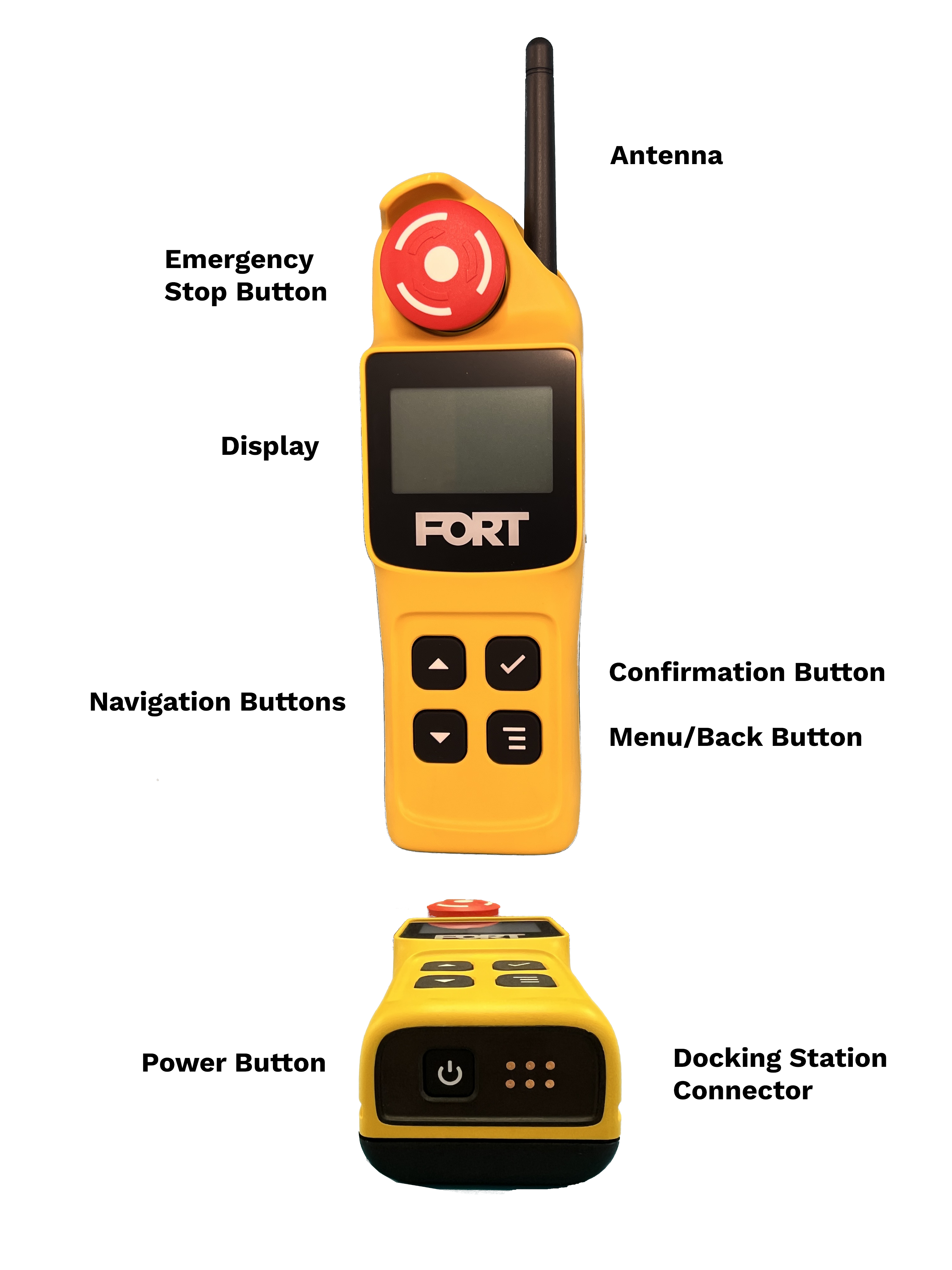
Turn WES Pro On or Off
Push the power button (located on the bottom of the device) to turn the WES Pro on or off. When you turn it on, the LCD screen lights up and the device vibrates when it is ready to use. Inserting the device into the docking station also turns it on if the docking station is connected to a power supply.
We recommend that you press the E-Stop button before powering the WES Pro on or off. However, the WES Pro has a built-in mechanism to prevent it from automatically reconnecting to a receiver when turning on, potentially triggering the EUC to operate unsafely. If the E-Stop button is not engaged when you turn the WES Pro on, the system prompts you to press the E-Stop button and keeps the receiver in a safe state until you first press the E-Stop button and then disengage it.
When you push the power button to turn it off, the WES Pro stops sending valid safety messages, which causes any connected device to go to the safe state after the timeout period is exceeded.
To reboot the device, push and hold the power button (for 8 seconds or more) and release it when the screen dims.
A WES Pro can be paired to an EPC or to an NSC Pro receiver.
In a Two-to-One configuration, the WES Pro shares its receiver with a second sender, and both act on the same output. The machine stays stopped while either device is requesting a stop, so releasing the E-Stop on the WES Pro does not restart the machine if the other sender is still stopping it. For more information, see Two-to-One with a WES Pro and an EPC.
Which output the two senders share is set for the configuration and may be Output 1 or Output 2. For more information, see Choosing Which Output the Senders Control
Before You Begin
Make certain that you have uploaded the configuration to all devices (Loading a Configuration onto Your Devices).
To Connect a WES Pro to an EPC:
-
As a safety precaution, press the E-Stop button.
When the devices connect, the E-Stop signal guarantees that the receiver is in a safe state and the equipment won’t start operating unexpectedly.
-
Power up both devices and keep them within range of each other.
The WES Pro displays a message indicating that the E-Stop button has been pressed.
The WES Pro provides haptic feedback (vibrates) when it connects to the receiver.
-
Press ✔ to exit the E-Stop activated screen.
-
You can press the Menu button ☰ and click Receiver Devices to verify that the WES Pro has connected to the receiver.
-
When it is safe to do so, turn the E-Stop button clockwise until it pops out to release it.
At this point, the EUC should be operating normally.
E-Stop Button
Press the E-Stop button to send a safety command to a connected device or
devices. The LCD will display the following alert:
E-Stoptriggeredforallconnectedmachines
Once you disengage the E-Stop, the connected device will operate normally. Be certain that the connected machine is safe to operate before disengaging the E-Stop.
Turn the E-Stop button clockwise until it pops out to disengage the E-Stop command.
Press ✔ to clear the alert.
Storing the WES Pro
If you plan to store the WES Pro for an extended period of time, we recommend doing so at the following temperatures to maximize battery life:
| Period | Temperature |
|---|---|
| Up to one month | -20 °C to 50 °C |
| One to three months | -10 °C to 45 °C |
| Longer than three months | -10 °C to 35 °C |
A WES Pro can pair with one receiver only. The receiver can be an EPC or an NSC Pro. Consult the Release notes for information specific to the version of the product that you are using.