Working with Multiple Configurations Offline
This chapter explains how to prepare several configurations in advance, carry them into the field, and switch your devices between them without an internet connection.
About Offline Configuration Management
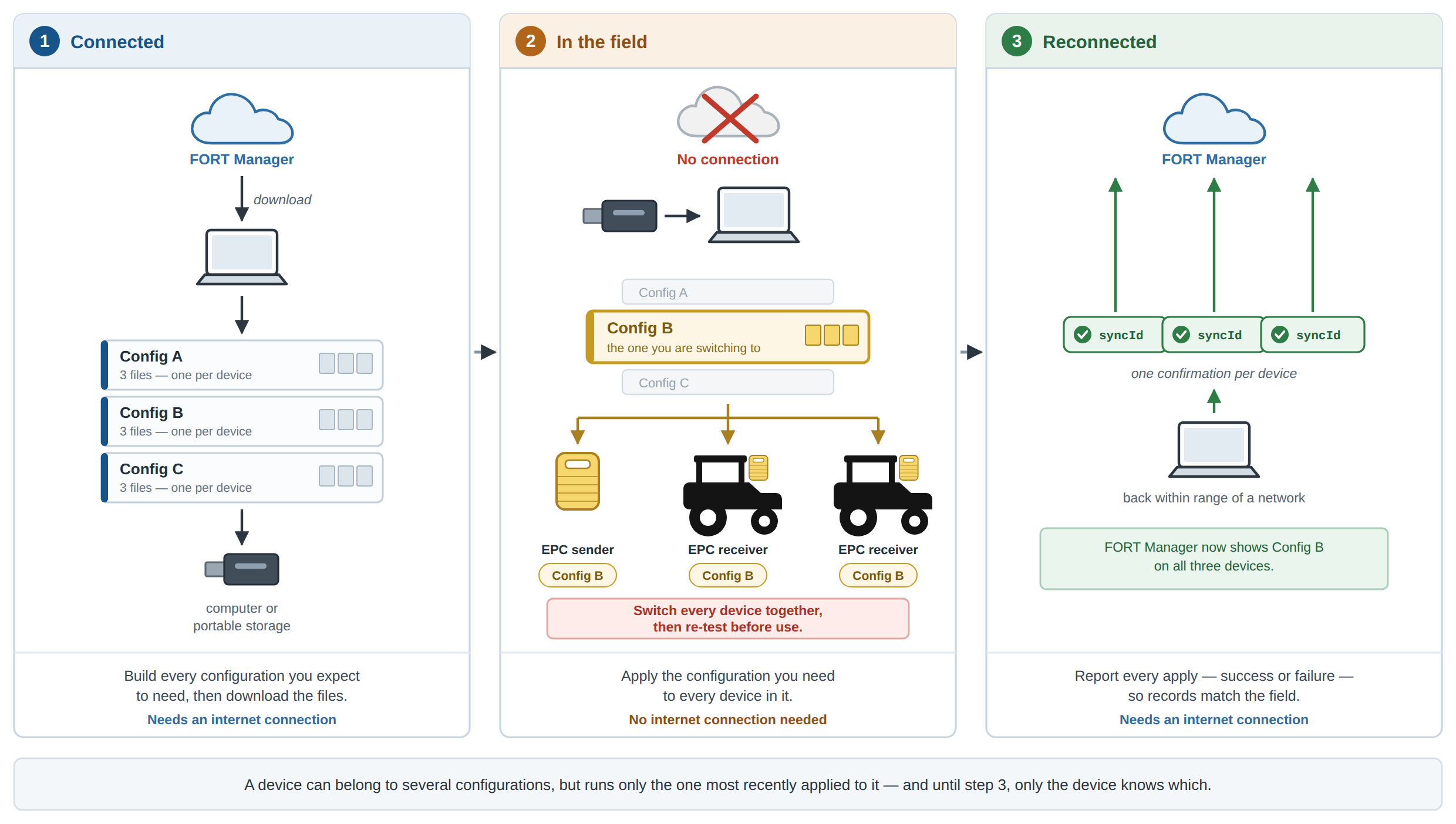
Teams that test in the field often need the same machines to run under different settings — a different safety timeout, a different communication channel, a different input assignment — and need to move between those settings several times in a session. If building a configuration required a connection to FORT Manager, every switch would mean finding connectivity first, which is slow and, in many work areas, not possible at all.
Instead, you do the connected work once:
-
Build every configuration you expect to need while you have an internet connection.
-
Download a configuration file for each device in each configuration and save the files to your computer or to portable storage.
-
In the field, apply whichever configuration you need, directly from those files.
-
When you next have a connection, confirm the applied configurations so that FORT Manager's records match what is running on your devices.
Steps 1, 2, and 4 need connectivity. Step 3 does not.
How Offline Configuration Works
A configuration file is a binary file, in CBOR format, that contains everything one device needs to run one configuration. You download one file per device per configuration. A three-device configuration produces three files; two configurations for those same three devices produce six.
Each configuration file carries a sync ID — a unique identifier for
that particular download. When you apply the file to a device, the device begins
running that configuration immediately, but FORT Manager has no way to know that
until you tell it. You do that by sending the sync ID back, along with whether the
apply succeeded and when it happened. This is what keeps FORT Manager's deployment
records accurate across an offline session.
Until you confirm an applied configuration, FORT Manager's record of which configuration is on a device may be out of date. Treat the device, not FORT Manager, as the source of truth while you are working offline. You can check what is loaded on a device by connecting to it and reading its device information.
Before You Begin
You need the following before you go into the field:
-
Every configuration you expect to need, already built. See config.html#config__building-a-configuration and config.html#config__building-config-with-fort-api.
-
The FORT CLI tool installed on the computer you will take with you. For more information, see FORT CLI Configuration Tool.
-
An API key created in FORT Manager, or a completed interactive login. Log in before you lose connectivity.
-
The serial numbers of every device you plan to configure. You can find a serial number on the device nameplate, in a handheld's onscreen menu, or in FORT Manager on the Devices page.
-
Cables for each device type:
-
EPC — M12-RJ45 cable (e.g., ASI-M12-RJ45-11101)
-
NSC Pro — USB-A to USB-C
-
SRC Pro — USB-A to mini USB-B; SRC Pro 1003 has a USB-C port.
-
WES Pro — Docking station
-
-
Enough space on your computer or portable storage for one file per device per configuration.
-
Confirmation that the devices you will configure in the field are the right models for the configurations you are carrying. A configuration that communicates over LRBLE requires model 1003 throughout — WES Pro 1003, SRC Pro 1003, EPC 1003, or NSC Pro 1003 as applicable. If you swap in a replacement device of a different model, that configuration can no longer be used with it. For more information, see Device Models and Communication Methods.
Download your configuration files and complete your login while you still have an internet connection. Neither can be done in the field.
Preparing Configurations for Field Use
Complete this procedure while you have an internet connection.
-
Log in to FORT Manager from the CLI tool.
Use an API key, substituting the key you were issued:
fortcli login --api-key YOUR_API_KEYOr log in interactively, which opens a browser for authorization:
fortcli login --interactive -
Connect the first device to your computer and confirm the tool can see it.
./fortcli device listThe tool lists the connection ID, model name, interface type, and serial number of each connected device. Add
--jsonfor machine-readable output. -
Create a directory for each configuration so the files stay distinguishable.
Configuration files are named by the tool and are not self-describing at a glance. Organizing by directory is the simplest way to be certain which file belongs to which configuration.
mkdir -p ~/fort-configs/yard-supervised mkdir -p ~/fort-configs/work-area-autonomous -
Download the configuration file for each device.
./fortcli device configuration download <SERIAL_NUMBER> -o ~/fort-configs/yard-supervisedThe
-ooption sets the output directory. Repeat for every device in the configuration — senders and receivers. -
Repeat for every configuration you plan to take into the field.
-
Copy the directories to portable storage if you will use a different computer in the field.
-
Verify that you have one file per device per configuration before you disconnect.
A missing receiver file is not obvious until you are in the field and cannot fetch it.
If you change a configuration in FORT Manager after downloading its files, the files you are carrying are out of date. Download them again before you go into the field.
Switching Configurations in the Field
This procedure does not require an internet connection.
Before you begin, place the equipment under control in a safe state and confirm that no one is in a hazardous area. Applying a configuration interrupts communication between the sender and its receivers, and the device reboots when the apply completes.
-
Confirm the equipment under control and all connected machines are in a safe state.
-
Identify every device in the configuration you are switching to.
You must apply the configuration to all of them — the sender and every receiver. See the warning in Safety Requirements for Field Configuration Switching.
-
Connect the first device to your computer.
For an EPC, connect over Ethernet to port J2 using the M12-RJ45 cable. For an NSC Pro, SRC Pro, or WES Pro, connect via USB; the WES Pro requires its docking station.
-
Confirm the tool sees the device and note its serial number.
./fortcli device list -
Apply the configuration file for that device.
./fortcli device configuration apply <SERIAL_NUMBER> -f <FILENAME.cbor>Use the file from the directory for the configuration you are switching to. The device reboots automatically after a successful apply.
-
Wait for the device to finish rebooting before disconnecting it.
-
Repeat for every remaining device in the configuration.
-
Test the system before returning it to service.
For more information, see Safety Requirements for Field Configuration Switching
If you have an internet connection available, you can skip the download and apply steps and let the tool fetch and apply the current configuration in one command:
./fortcli device configuration update <SERIAL_NUMBER>This command requires connectivity to FORT Manager.
Confirming Configurations After You Reconnect
When you have an internet connection again, confirm the configurations you applied so that FORT Manager's records match your devices. Until you do, FORT Manager may show a device as running a configuration other than the one it is actually running.
Each configuration file contains a syncId. The download response
also returns it in the X-Config-File-Sync-Id header. To confirm an
apply, send that sync ID back with the outcome and a timestamp:
POST /v1/organizations/{orgId}/devices/{serialNumber}/confirm-apply-configuration
Authorization: Bearer YOUR_KEY_HERE
Content-Type: application/json

{
  "configurationFileSuccessfullyDeployed": true,
  "syncId": "550e8400-e29b-41d4-a716-446655440000",
  "applyTimeStamp": "2026-08-18T14:32:07Z"
}
If an apply failed, report it the same way with
"configurationFileSuccessfullyDeployed": false and an
error string describing what happened. Reporting failures is
worth the effort: it is what keeps FORT Manager from showing a device as
successfully configured when it is not.
For full endpoint details, see FORT Manager API Reference Guide.
Record which configuration you applied to which device while you are in the field. If you switch several times in a session, reconciling afterward from memory is error-prone.
Safety Requirements for Field Configuration Switching
Switching configurations in the field changes how your safety system behaves. Treat every switch as a change to the safety system, not as a settings adjustment.
Apply the new configuration to every device in the configuration before you operate the equipment. A sender running one configuration and receivers running another is an unsafe condition: receivers may continue listening to a transmitter you are no longer using, or fail to respond to the transmitter you are using.
After every configuration switch, test the system before returning it to service. Testing must confirm at minimum that:
-
Pressing the E-Stop on each sender puts the equipment under control into the safe state.
-
Each wired safety device connected to a receiver's inputs triggers the safe state as intended for the configuration you just applied.
-
Every receiver in the configuration responds to the intended sender, and no receiver responds to a sender that is not part of the configuration.
-
The safety timeout behaves as configured. Timeout values can differ between configurations.
See Proof Testing Pro Series Devices and Wireless Communication Loss.
Do not switch configurations while equipment is operating or while anyone is in a hazardous area. Applying a configuration interrupts safety communication and reboots the device.
Confirm that the configuration you are applying is the one you intend to apply. Because configuration files are applied by filename, applying a file from the wrong directory loads the wrong configuration onto the device, and the device accepts it. Organize your files by configuration and verify before each apply.
Be certain that a safety expert has verified that each configuration you intend to use in the field operates in accordance with your safety plan, before the configuration is taken into the field. Field testing confirms that the configuration was applied correctly; it does not substitute for validating that the configuration itself is safe.
Limitations
-
Configurations must be built while you have an internet connection. You cannot create or modify a configuration offline.
-
Configuration files must be downloaded in advance. You cannot download a configuration you did not bring with you.
-
Configuration files reflect the configuration as it was at the moment you downloaded it. Changes made in FORT Manager afterward are not in the file you are carrying.
-
The FORT Manager Desktop App and Web App do not support downloading multiple configuration files to your file system. Use the FORT CLI tool for offline multi-configuration workflows.
-
FORT Manager's deployment status is not accurate until you confirm your applies. See the section above.
- A configuration file can only be applied to a device that supports the communication method the configuration uses. Replacing a device with a different model in the field may leave you unable to apply a configuration you are carrying.
-
Preparing configuration files requires FORT Manager, thus you cannot download a new file for a device whose model has reached end of support. For more information, see SRC Pro Models and Support Status.